Step 5 — Create the RFC Connection in SAP
Step 5 — Create the RFC Connection in SAP
This guide shows how to set up the TCP/IP RFC destination that Crestone will use to communicate with your SAP system.
The RFC destination provides the secure transport channel for Crestone to execute remote-enabled function modules.
Note on handling extractions: By default, Crestone uses a single RFC connection (CRESTONE_SERVER) to communicate with the SAP system, which means that extractions are executed sequentially—that is, an RFC connection can only process one extraction at a time. If your scenario requires running multiple extractions simultaneously, see the "Using Parallelism: Additional RFC Connections (Slots)" section below.
Prerequisites
- SAP GUI (SAP Logon) access to the target system/client.
- Technical user dedicated to Crestone integration with the role
ZCRESTONEassigned (see Step 4). - Hostname/IP, system number (SYSNR), client, and logon language for the SAP application server where Crestone will connect.
1) Open the RFC configuration
- Log in to SAP with a user authorized to maintain RFC destinations.
- Launch transaction
SM59(RFC Destinations). - In the navigation tree, expand TCP/IP Connections.
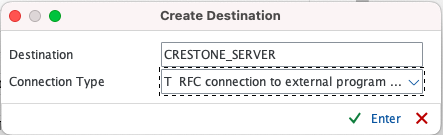
- Click Create (or use Display/Change → Create).
2) Maintain the RFC destination
Fill the tabs as follows:
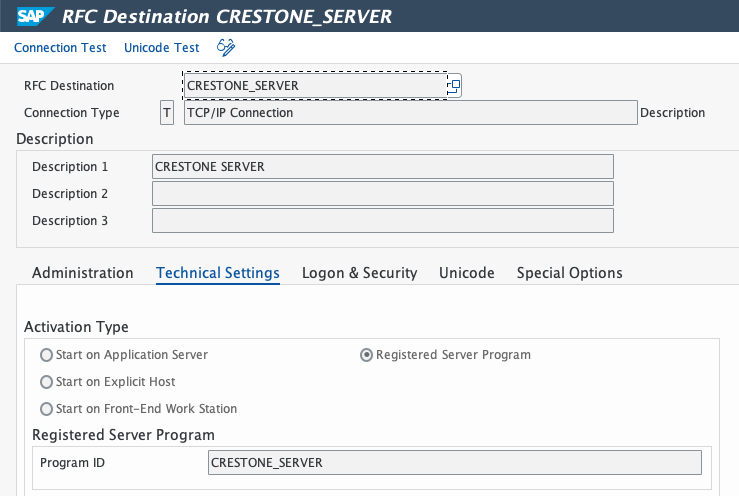
Technical Settings
- RFC Destination:
CRESTONE_SERVER. - Connection Type: Select
T(TCP/IP Connection). - Description: Provide a short purpose (e.g., "Crestone integration").
- Activation Type: Choose
Registered Server Program. - Program ID: Set a unique identifier (e.g.,
CRESTONE_SERVER). This must match the ID configured in the Crestone connector. - Leave Gateway Host and Gateway Service with the default values for your SAP system unless BASIS specifies otherwise.
No logon credentials are required for TCP/IP destinations. Save the destination when the fields are complete.
Click Save when the fields are complete.
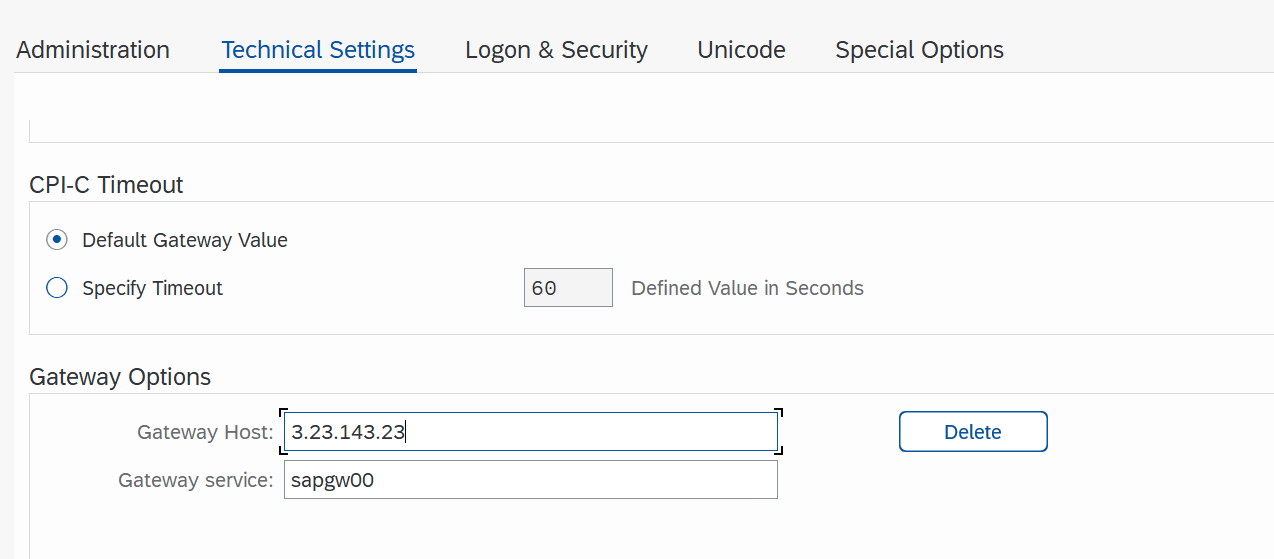
These Gateway options are essential for RFC connection with SAP. Although they are located at the bottom of the screen and require scrolling, they must be completed for the integration to function correctly.
-
Gateway Host: Here you must specify the IP address or hostname of the SAP server acting as the Gateway host. This information is critical, as it defines which SAP system the RFC service will connect to.
-
TCP Service: This value corresponds to the standard SAP Gateway service, in the format: sapgw + SAP instance number
(for example: sapgw00, sapgw01, etc.).
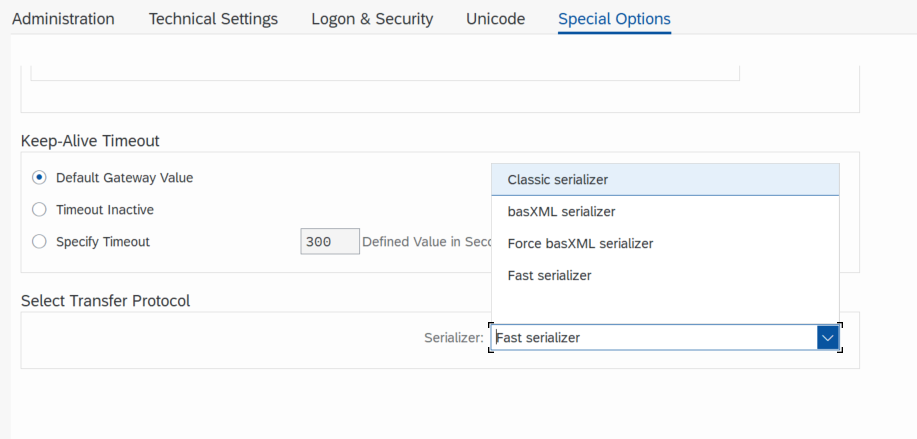
Special Options
Classical serialization ("classic") must be configured, as it is the setting that ensures the orderly and stable processing of asynchronously transmitted data. If left configured as "fast" (or any option other than "classic"), the connection will fail and produce the following error:
[JCO ERROR SYSTEM FAILURE: Index -1 out of bounds for length 0 RFC ERROR SYSTEM – Message number: 341]
Regarding the handling of outgoing bgRFCs, the option to convert outgoing bgRFCs to outgoing qRFCs should be selected. This maintains execution order, improves queue monitoring, and facilitates error analysis during the testing and validation phase.
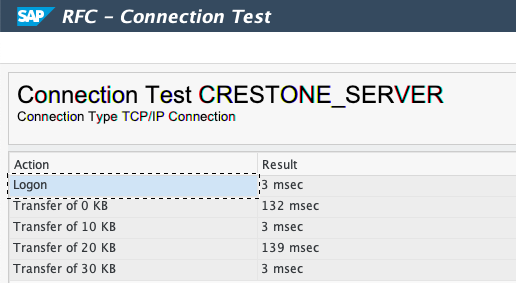
3) Test the connection
- With the new destination selected, choose Connection Test.
- Confirm you receive status Connection test OK.
- If any errors appear, verify that the Crestone connector is running and registered with the same Program ID, and confirm network/firewall settings permit the registration.
4) Configure SAP Gateway security
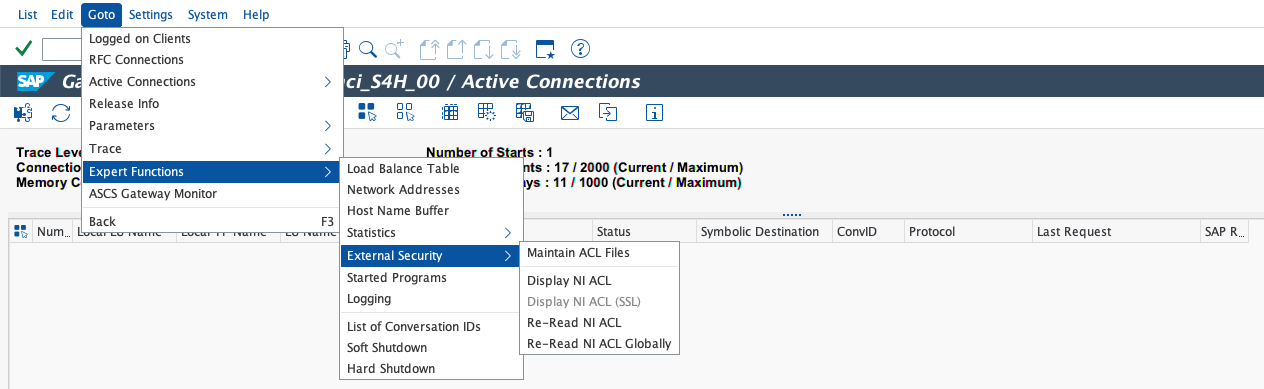
- Access transaction
SMGW. - Navigate to Goto ▸ Expert Functions ▸ External Security ▸ Maintain ACL Files.
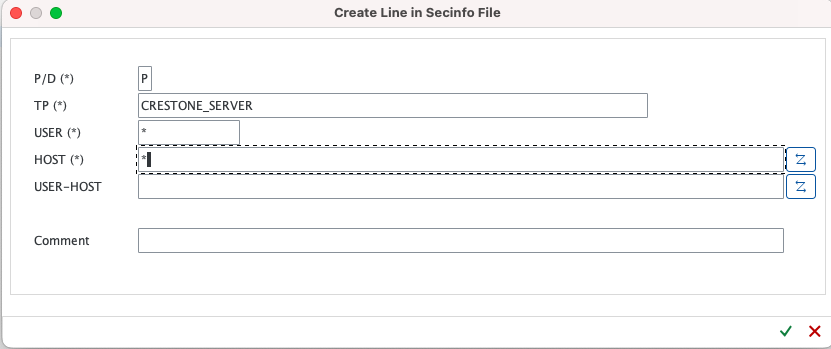
- In the secinfo file, add the standard entry that allows program
CRESTONE_SERVERto start, specifying:TP:CRESTONE_SERVERHOST: the application server host name or*(per security policy)USER: the SAP user permitted to start the program (often*for registered programs)
- In the reginfo file, add the standard entry that allows program
CRESTONE_SERVERto register from the connector host, for example:TP:CRESTONE_SERVERHOST: connector host/IPACC:*(permitted users/clients)
Coordinate these ACL entries with your BASIS/security team; incorrect values can block gateway registrations or expose the gateway unnecessarily.
Verification
- The RFC destination appears under TCP/IP Connections with a green status icon.
- Connection tests complete without errors.
- Logs in transaction
SM59show successful registration/test timestamps.
Summary
- Create a TCP/IP RFC destination in
SM59with connection typeT. - Set the destination name and Program ID to
CRESTONE_SERVER(or your agreed identifier). - Save and test the destination to confirm successful registration and connectivity.
- Configure SAP Gateway security
- Use of parallelism: additional RFC connections (slots) Each extraction performed by Crestone consumes one RFC connection. With only one connection configured (CRESTONE_SERVER), extractions can only be processed sequentially, one at a time. If parallel processing is to be enabled, additional RFC connections must be created in SM59, following the same procedure detailed in steps 2) Maintain the RFC Destination, 3) Test the Connection, and 4) Configure SAP Gateway Security, using EXACTLY the following destination names:
- CRES_SLOT_1
- CRES_SLOT_2
- CRES_SLOT_3
- CRES_SLOT_4
- CRES_SLOT_5
Important:
These are the only slot names supported by the platform; Crestone recognizes a maximum of 5 slots, predefined with these exact names. No variants are supported (different names, different numbering, or a quantity greater than 5); any RFC connection created with a different name will not be recognized by Crestone as a valid parallelism slot. When configuring each slot, every reference to CRESTONE_SERVER must be replaced with the corresponding slot name, in all fields and steps where applicable. For example, if configuring CRES_SLOT_1:
- RFC Destination (step 2): CRES_SLOT_1
- Program ID (step 2): CRES_SLOT_1(must match the ID configured in the Crestone connector for that slot)
- secinfo file (step 4): TP: CRES_SLOT_1
- reginfo file (step 4): TP: CRES_SLOT_1
The remaining technical parameters (connection type, activation type, gateway host/service, classical serialization, and conversion of outgoing bgRFC calls to outgoing qRFC calls) remain the same as in the CRESTONE_SERVER configuration.
the number of RFC connections created defines the maximum degree of parallelism available. For example, with 5 slots configured, Crestone will be able to run up to 5 simultaneous extractions; without additional connections, processing will be strictly sequential.
Platform-side activation: in addition to the SAP-side configuration, parallelism must be enabled from the Crestone configuration (Settings → Extraction → RFC Parallelism), where an option exists to turn this mode on or off. If parallelism is disabled, Crestone will use only the CRESTONE_SERVER connection sequentially, even if additional slots are configured in SAP.