V 1.97.5
V 1.97.5
- Action
- Slider
All the features of this release
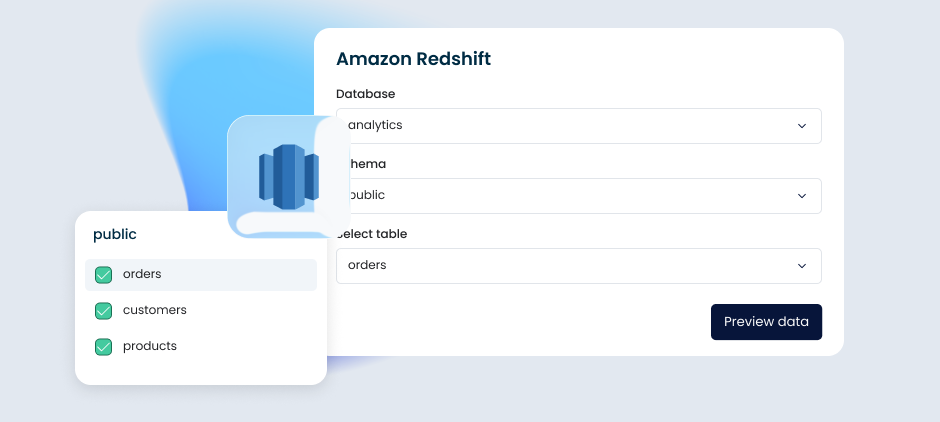
Amazon Redshift as a source
You can now extract data from Redshift and move it to any destination, configuring everything directly from the screen. • Connection: Enter server details and choose the TLS security mode: require (default), verify-ca, or verify-full. • Data selection: Browse by schema, table, or view, and select the columns you wish to extract. • Filters, incremental loading, and row limits: Filter data, extract only new records using a control column, and limit the number of rows. • Preview: View a sample of the data before saving the node. • Connection details: View connection settings (server, port, database, user, and TLS mode) when opening an existing connection.
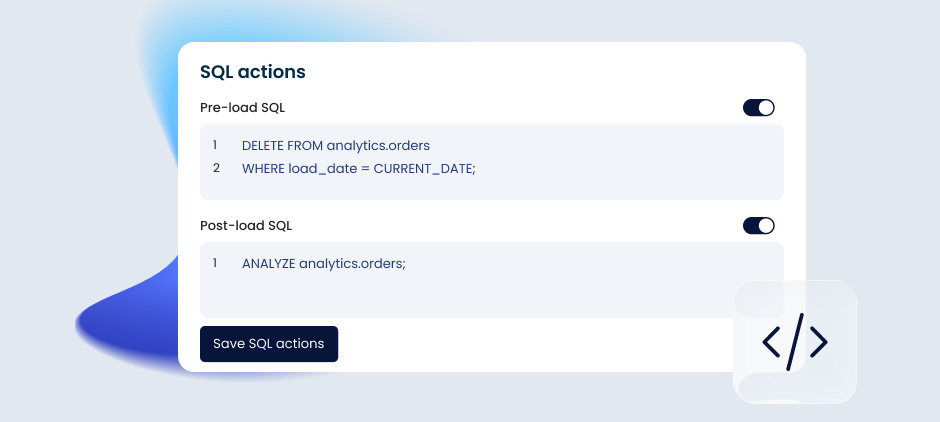
Pre- and post-load SQL
For database destinations, you can execute custom SQL statements before and after loading data for each node. • Available for PostgreSQL, MySQL, Oracle, Sybase, DB2, SQL Server, Snowflake, Teradata, and SAP HANA. • The screen displays a warning if the SQL includes statements that modify table structures. • Crestone re-validates the SQL before execution.
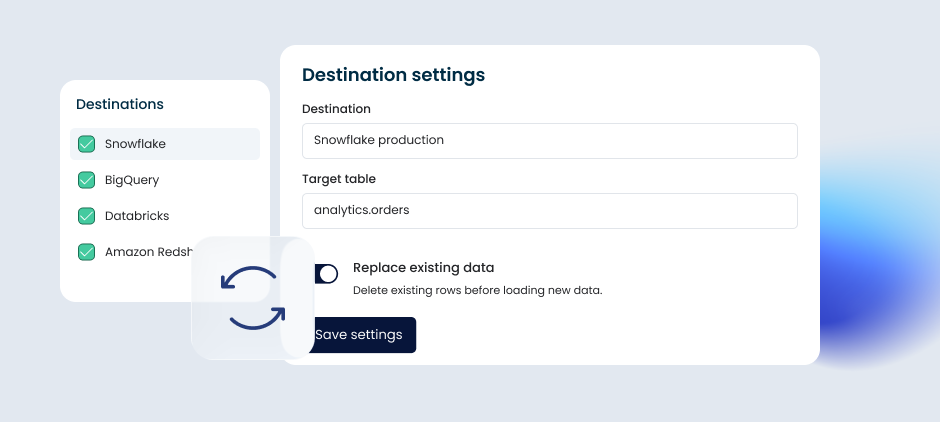
Data replacement for more destinations
You can now choose to delete existing data before loading new data for the following destinations as well: Azure SQL Server, Amazon Redshift, Databricks, and Google BigQuery. • With the option enabled, the load replaces existing data instead of appending to it. • With the option disabled, new data is added to existing data, maintaining the previous behavior. • This is not available in Databricks when the node operates in CDC mode, as changes are applied to existing data in that scenario. • Other database destinations already supported this option.
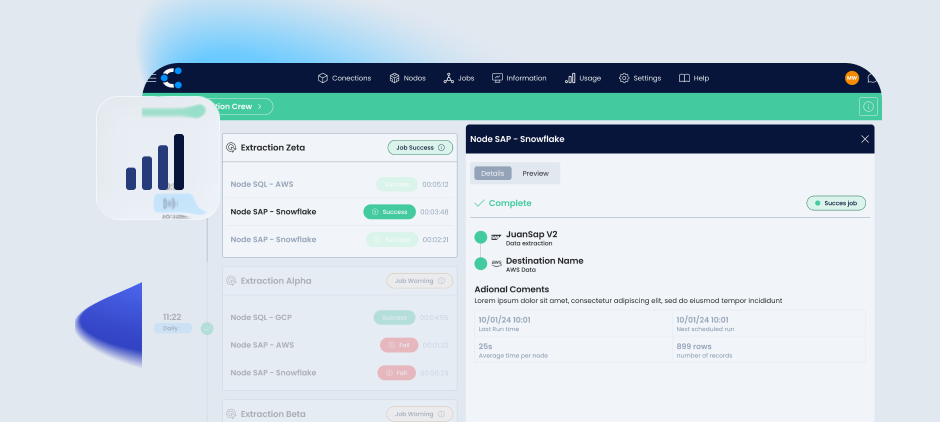
Monitoring: more comprehensive performance screen
The performance screen offers a new way to view executions. • Table view: toggle between the chart view and a table. • More information per row, and the ability to expand multiple rows at once. • Filter by job name.
Amazon Redshift as a source
You can now extract data from Redshift and move it to any destination, configuring everything directly from the screen. • Connection: Enter server details and choose the TLS security mode: require (default), verify-ca, or verify-full. • Data selection: Browse by schema, table, or view, and select the columns you wish to extract. • Filters, incremental loading, and row limits: Filter data, extract only new records using a control column, and limit the number of rows. • Preview: View a sample of the data before saving the node. • Connection details: View connection settings (server, port, database, user, and TLS mode) when opening an existing connection.