Templates
Templates
Create a Job Using a Template
If you're looking to accelerate the creation of your jobs without starting from scratch, the template module offers a guided and automated way to configure full workflows based on predefined SAP modules. This feature helps you streamline data extraction and loading by generating all necessary nodes and jobs in just a few steps.
Step-by-step Process
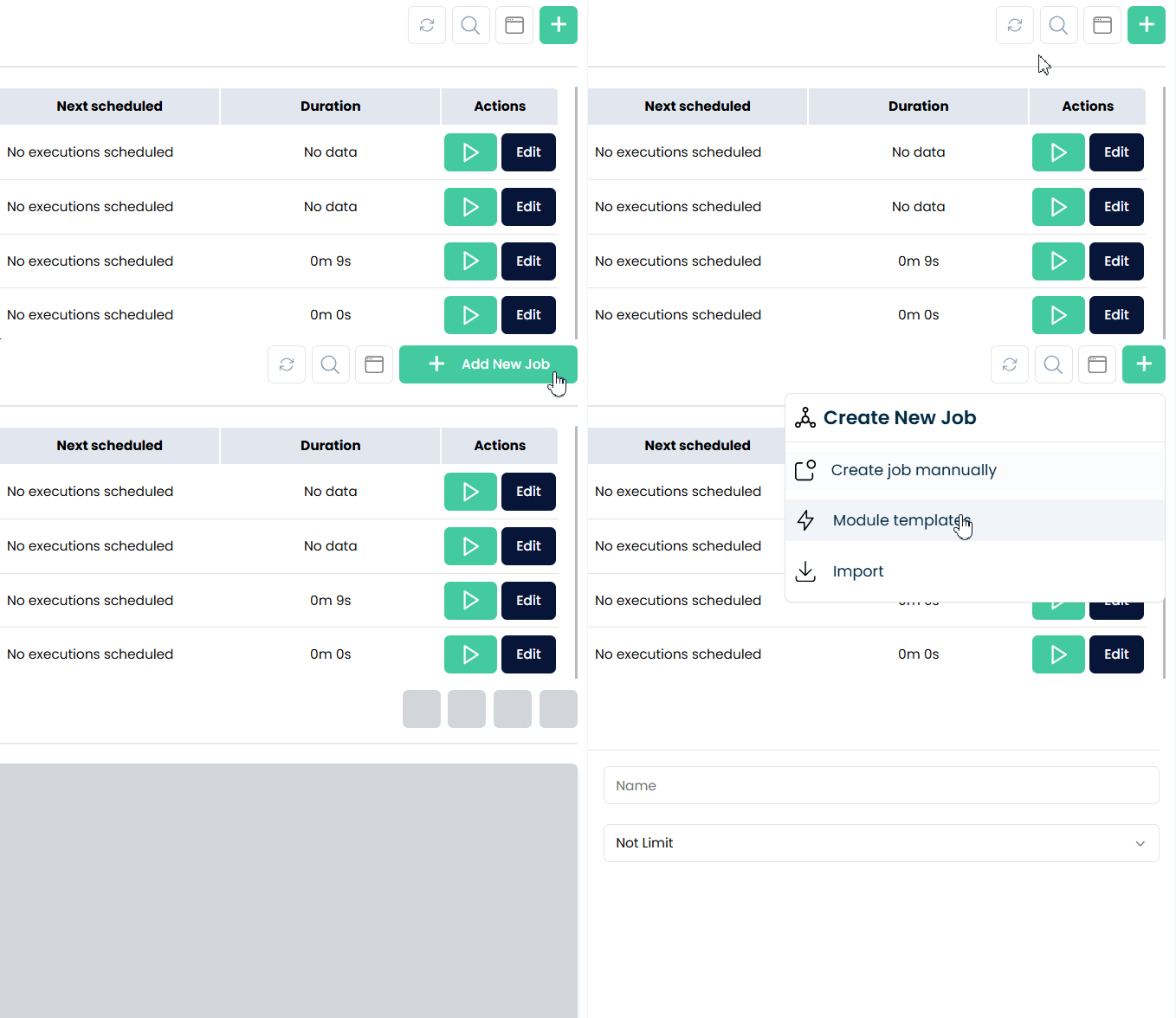
1. Select "Module Templates" from the Add New Job Menu
From the main dashboard or job list, click "Add New Job" and choose the "Module Templates" option. This starts the guided creation process using a predefined SAP module structure.
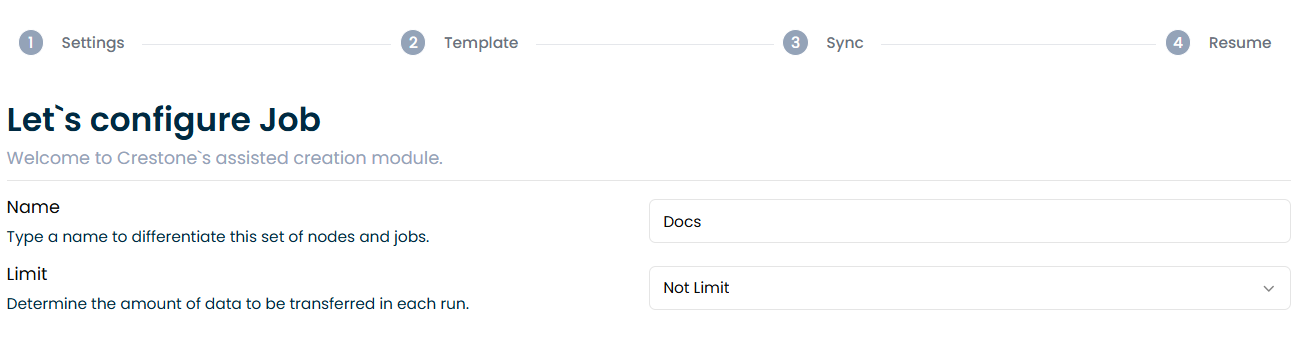
2. Let’s Configure the Job
You’ll be prompted to enter a name for your job and define the maximum number of records per extraction batch. This helps control performance and manage large datasets.
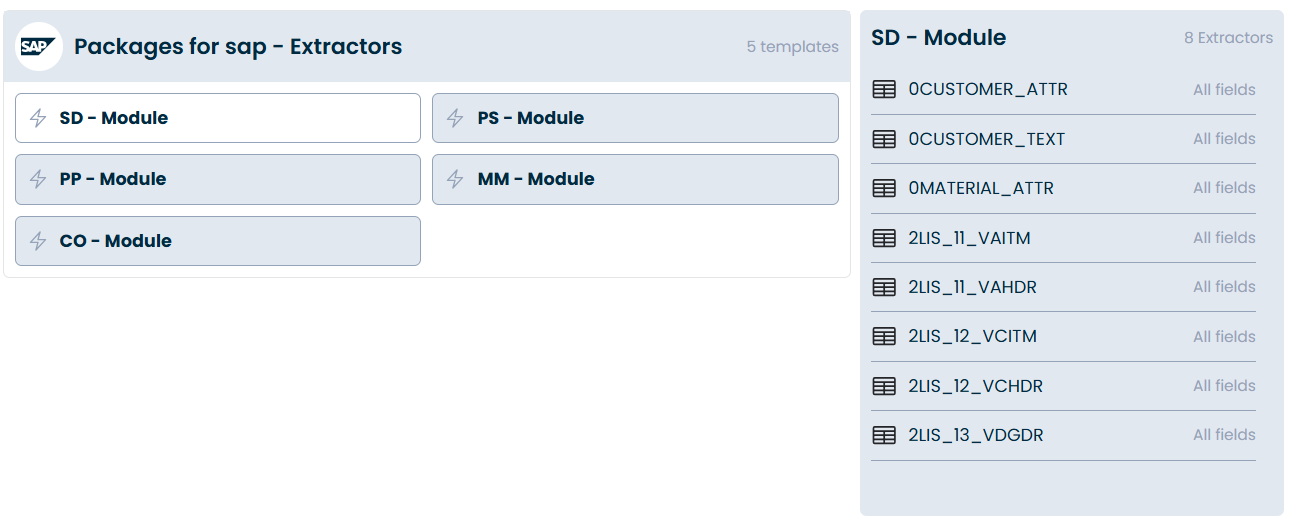
3. Choose the SAP Module
Select the SAP module you wish to import:
SD(Sales and Distribution)PS(Project System)pp(Production Planning)MM(Materials Management)CO(Controlling)
Once selected, the system will display all the required tables and nodes that will be generated based on that module.
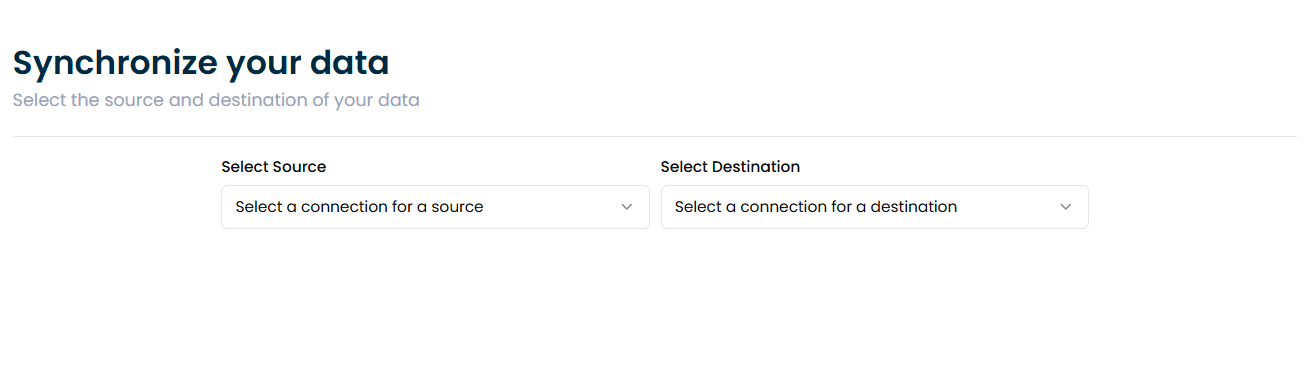
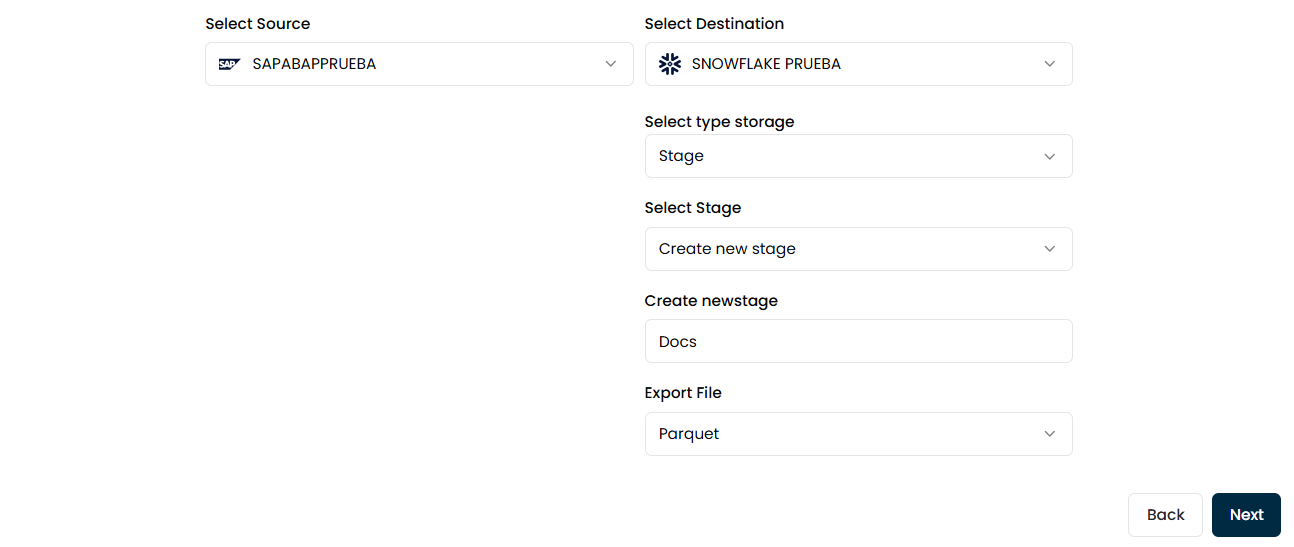
4. Select a Source and Destination
Pick your source system and the destination for your data. All connections and credentials must be configured beforehand.
 For the destination, you'll be able to customize how the data is stored:
- Format:
CSVorParquet - Type:
StageorTable - Path or table name: select an existing one or create a new one
5. Review Summary
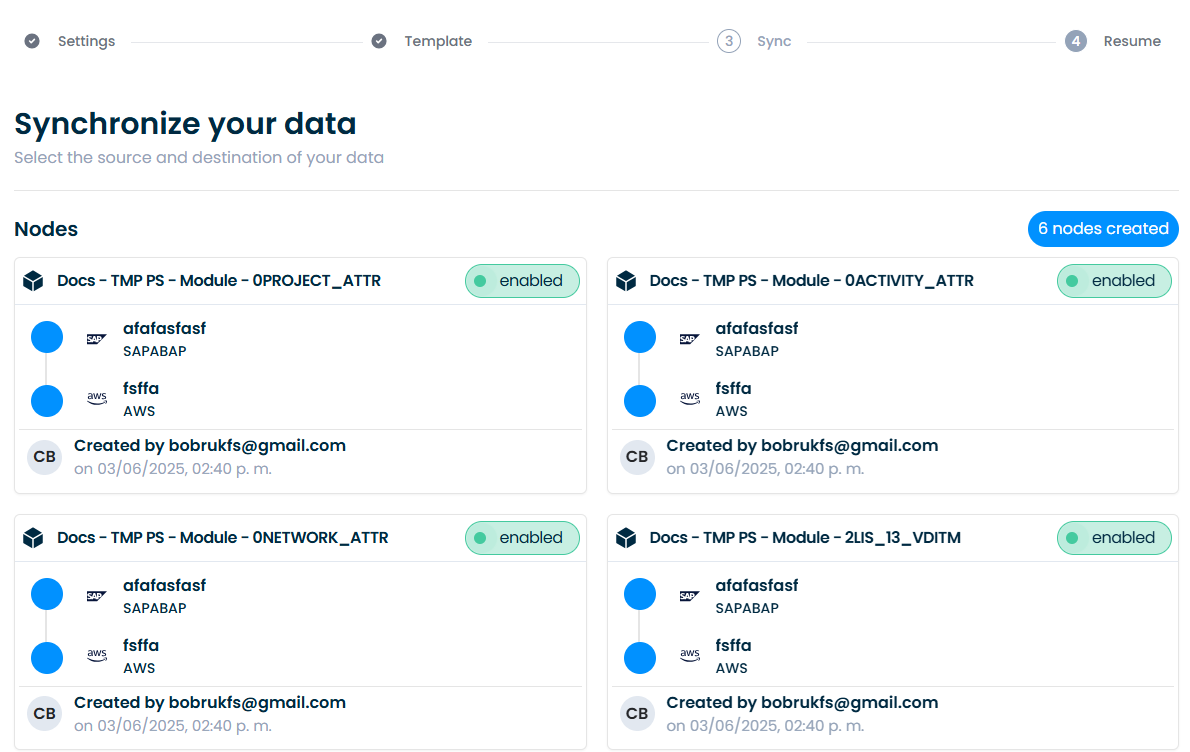
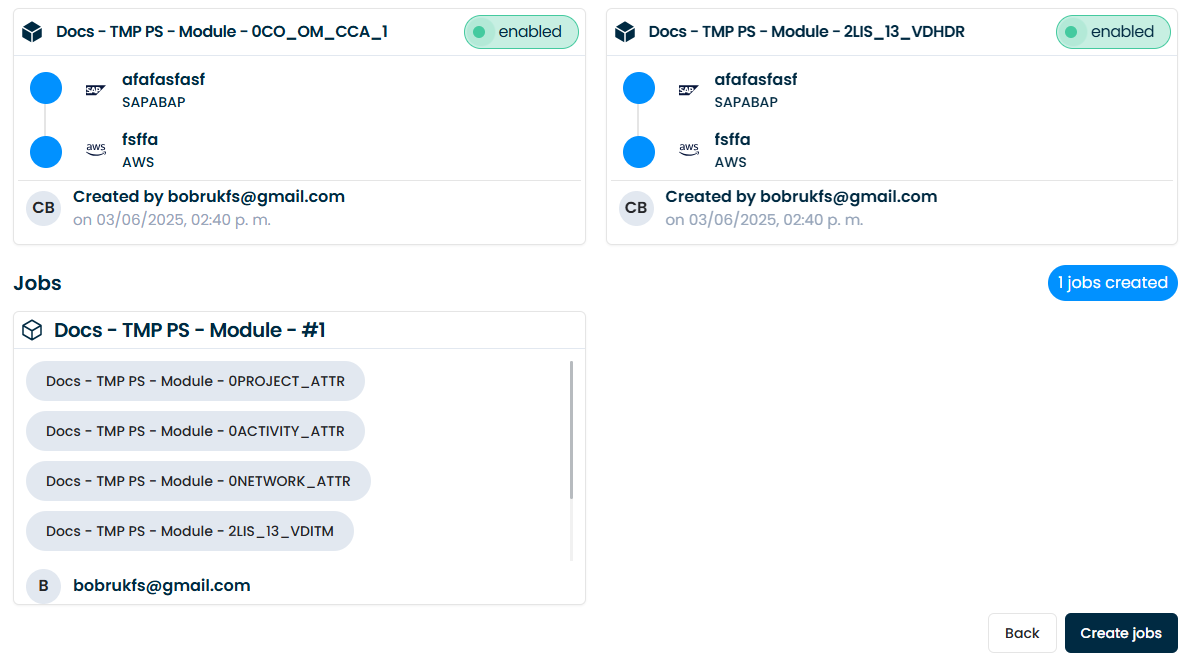
A full summary view will display the nodes and job flow that will be created according to your selected configuration. You can verify everything before continuing.
6. All Set
Once confirmed, the platform will automatically generate the nodes and job. If needed, you can make manual adjustments to either the nodes or the job in the visual canvas editor.