Batch by Field (Tables)
Batch by Field (Tables)
Introduction
Batch by field lets you split the extraction of a table node into several smaller sub-extractions (by date or by the values of a field), instead of pulling everything in a single call to SAP. It's useful to:
- Avoid timeouts or performance issues on large tables.
- Spread the extraction load across several RFC calls instead of just one.
Important: on table nodes, batch by field does not generate separate files. All sub-extractions are combined (merged) into a single output file. The option to generate several files ("split") only exists on Report-type nodes — it doesn't apply here.
Configuration
Enable the section
Turn on the Enable batching switch inside the "Batch by field" block, in the node's source configuration.
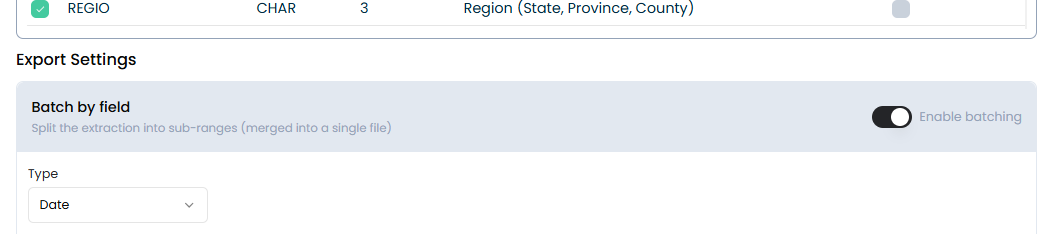
Choose the type: Date or String
Only one batch can be configured per node, of a single type: Date or String. You cannot combine types or create two batches on the same node. Switching type clears the fields specific to the other type (ranges, values, selected field, etc.).
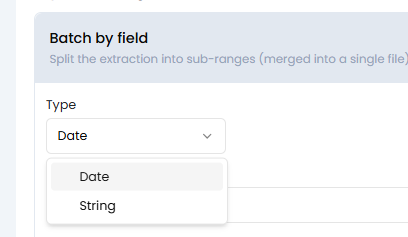
- Date
- String
Splits a date range using a date-type field from the table (SAP considers DATS, DATE, DATN
and DATUM as date types). Each sub-range builds a field >= 'from' AND field <= 'to' condition,
which is added with AND to the rest of the filters already defined on the node, and triggers its
own sub-extraction against SAP.
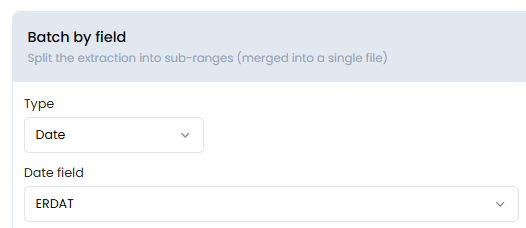
Date field
Select the date field to split by. Only fields the table reports as date type appear in the list.
Date mode
There are three modes available:
Standard
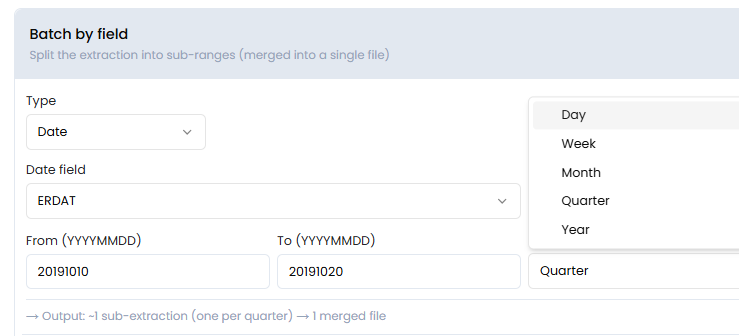
Set a global From / To range (YYYYMMDD format) and the split frequency (Batch
every): Day, Week, Month, Quarter or Year. Crestone automatically builds the sub-ranges within
that period according to the chosen frequency — for example, with From=20240101,
To=20241231 and Batch every=Month, it generates one sub-range per month of the year (~12
sub-extractions).
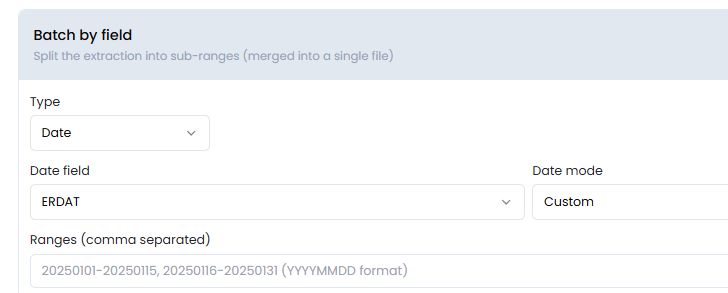
Custom
Manually enter the ranges separated by comma, in YYYYMMDD-YYYYMMDD format. For example:
20240301-20240410, 20240411-20240531
Each range in the list generates an independent sub-extraction. A range that isn't in the
from-to form is discarded (it doesn't stop the extraction, but it isn't executed either).
Dynamic
Set only the From date (YYYYMMDD) and the frequency (Batch every); there's no To
field. The upper bound of the range is automatically resolved to today's date at the moment of
each execution (not when the node is saved), so the range always runs from From up to the day
the extraction is triggered.
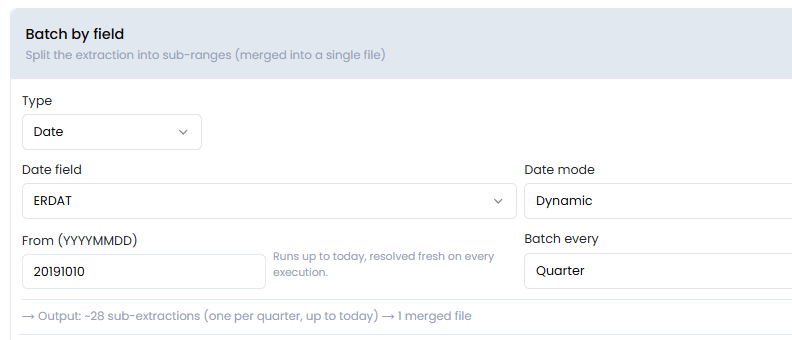
The node shows an estimate of how many sub-extractions will be generated based on the chosen mode and frequency (for example: "~12 sub-extractions (one per month) → 1 merged file").
Instead of splitting by date, it generates one sub-extraction per value of any field in the
table (it doesn't have to be a date field). Each value in the list is translated into a condition
that gets added with AND to the rest of the node's filters.
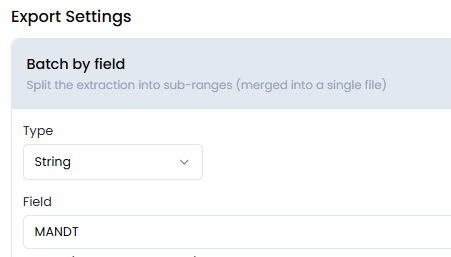
Field
Manually type the name of the field to batch by (for example MANDT, WERKS, BUKRS). Unlike
the date field, there's no selector here: it's a free-text input.
Values source: where the values come from
Choose between two ways to get the list of values to batch by:
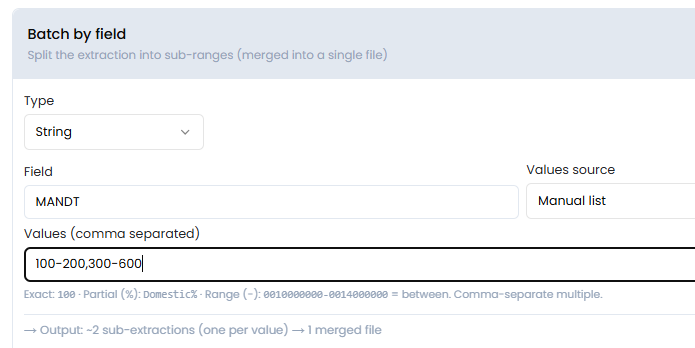
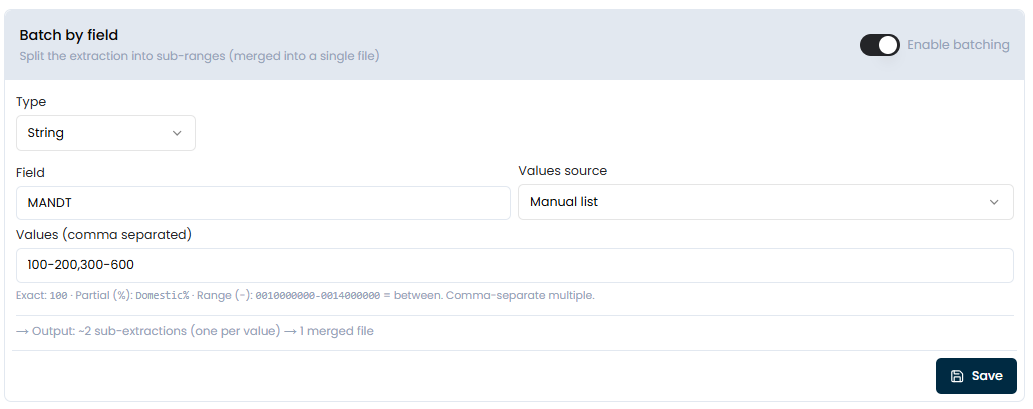
Manual list
Type the values separated by comma in the Values field. Each value supports three different syntaxes, detected automatically based on how it's written:
| Syntax | Example | Condition generated |
|---|---|---|
| Exact | 100 | field = '100' |
Partial (% wildcard) | Domestic% | field LIKE 'Domestic%' |
Range (-) | 0010000000-0014000000 | field >= '0010000000' AND field <= '0014000000' |
You cannot combine the three types in the same list, since it depends on the values that field contains, for example:
100, Domestic%, 0010000000-0014000000
Dynamic (master table)
Instead of typing the values by hand, they get resolved at the moment of each execution by
querying a master table in SAP (via RFC_READ_TABLE) — never the large table being
extracted, but a small reference table (for example T001W for plants, or TVKO for sales
organizations).
Steps to configure it:
-
Master table: search for the table (minimum 2 characters) and select it from the results (up to 50 matches are shown, sorted alphabetically).
-
Master field: once the table is selected, choose the field the distinct values will be read from.
-
Where clause (optional): a free ABAP condition to filter the master table before reading the values (for example
WERKS = '1000'). If left empty, every distinct value of the field is read. -
Preview values: a button to preview the values that would be resolved at that moment. It's only for checking purposes — it isn't saved, the actual values are resolved again on every job execution. The query brings up to 5000 rows and discards empty or duplicate values.
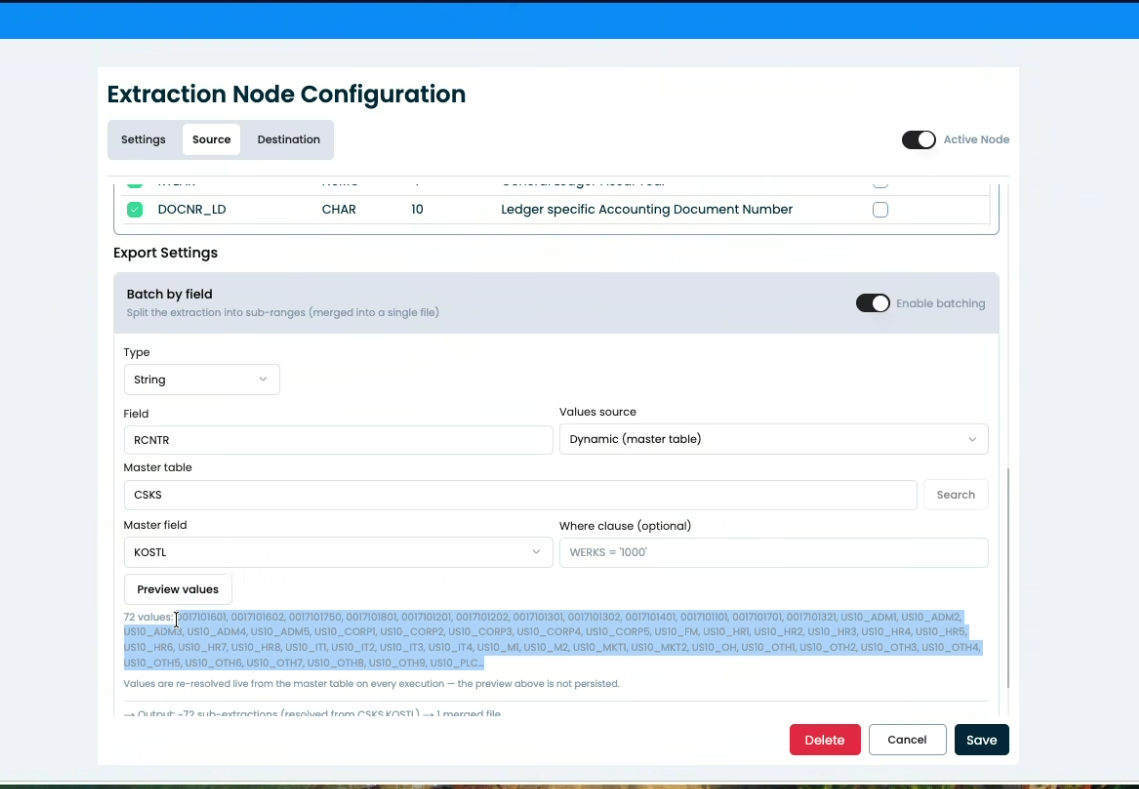
If the selected field has many distinct values, the batch will generate one sub-extraction per value — keep the volume in mind (and use a "Where clause" to narrow it down) before using high-cardinality fields.
Dynamic values take priority over the manual list: if the dynamic source (master table + field) is configured, any value left loaded in "Manual list" is ignored.
Save
With the Enable batching switch on and the type/mode configured, click Save to save the configuration on the node. If you turn the switch off, the batch configuration is removed from the node automatically (there's no need to click Save for that).
Behavior summary
- Batch by field on table nodes always merges all sub-extractions into a single final file — there's no option to generate several separate files (that only applies to Report nodes).
- Only one batch can be active per node, of a single type (Date or String).
- The conditions generated by the batch are added (
AND) to the rest of the filters already defined on the node — they don't replace them. - In Dynamic mode (both for dates and in String's dynamic "Values source") the values are resolved on every execution, not when the node is saved.