Authentication
Authentication
Sign in
Enter your email and password on the login page and click Sign in.
After a successful login you land on your preferred workspace.
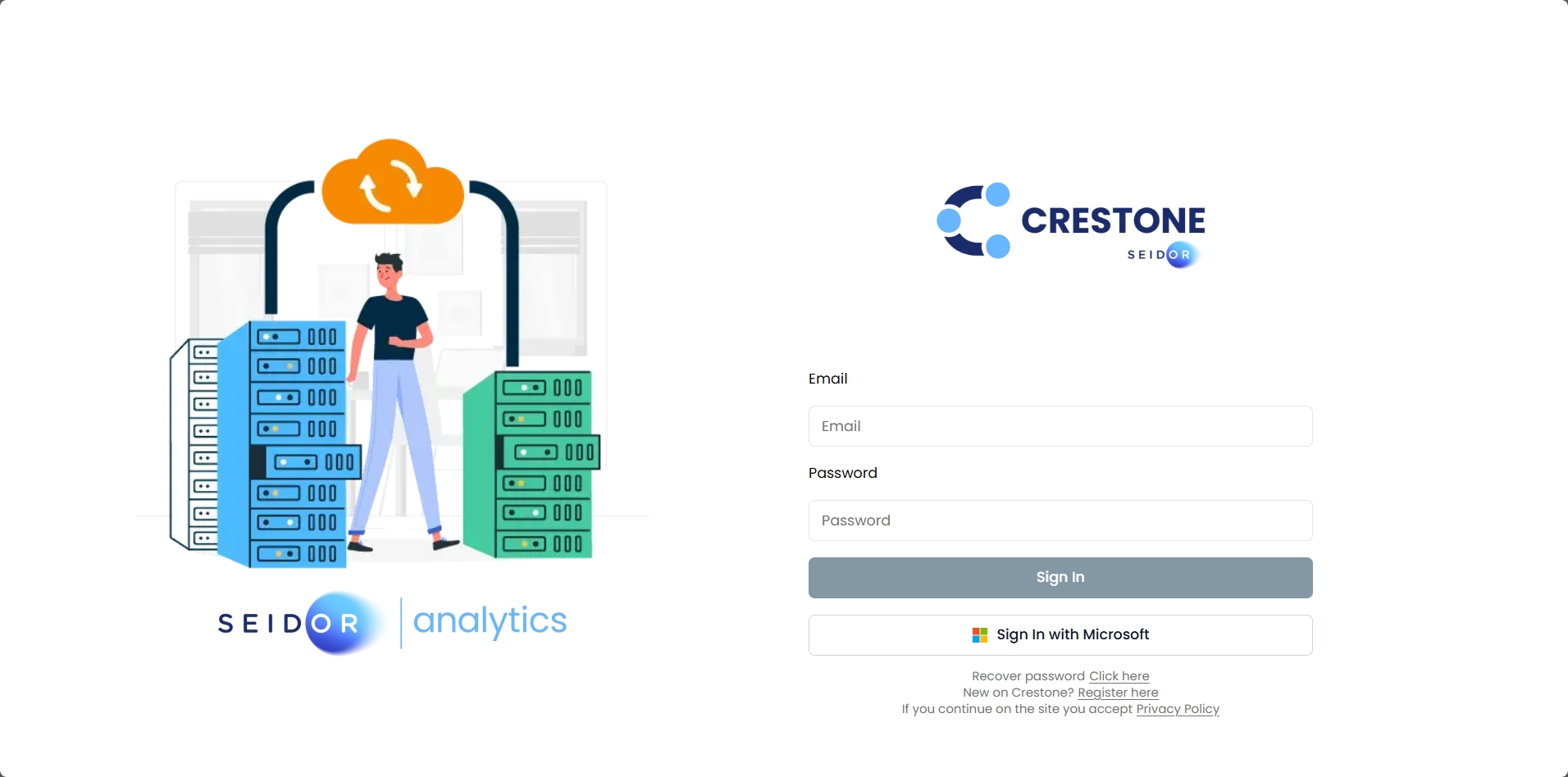
If you forgot your password, use "Forgot password?" to receive a recovery email and set a new one.
Multi-factor authentication (MFA)
MFA adds a second verification step with a temporary code (TOTP) generated by an authenticator app such as Microsoft Authenticator or Google Authenticator.
Enable MFA
1. Open your security settings
Go to your profile and select Enable MFA.
2. Scan the QR code
Scan the QR code with your authenticator app.
3. Confirm with a code
Enter the 6-digit code shown by the app to complete the enrollment.
Sign in with MFA
Once MFA is active, after entering your email and password Crestone asks for the current code from your authenticator app. Enter it and click Submit.
If you lose access to your authenticator app, contact your administrator to reset the second factor.
Sign in with Microsoft (SSO)
If your company enabled Microsoft login, you can use the "Sign In with Microsoft" button on the login page to sign in with your corporate account, without a Crestone password.
- If you already have a user in Crestone, you sign in with your usual user and role.
- If you don't have a user yet, one is created automatically inside your company's tenant, with the read-only role Microsoft SSO user and access to the tenant's workspaces. An administrator can later give you a different role.
- Microsoft completes the authentication; you are then returned to Crestone with your session started.
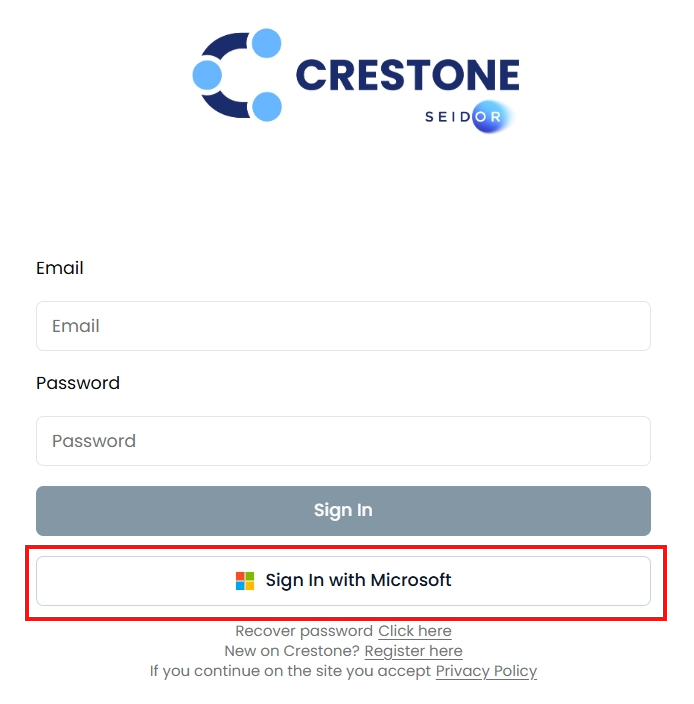
Microsoft login only works if a superadmin configured it in Settings → Microsoft Login. If it is not configured, the button shows a notice and no user is created. Ask your administrator.
Are you an administrator?
- To configure it in Crestone: Microsoft Login.
- To create the application in Azure and get the values to enter: Create the application in Azure.
Session lifetime
Your session token is renewed automatically while you work; you don't need to sign in again during normal use. When the session can no longer be renewed (for example after a long period of inactivity), Crestone redirects you to the login page.