Microsoft Login
Microsoft Login
What is it?
Microsoft Login lets your company's users sign in to Crestone with their corporate Microsoft account (Microsoft Entra ID, formerly Azure AD), without creating or remembering a Crestone password.
For it to work, each company uses its own Azure application: the administrator registers it in Azure and enters its details in Settings → Microsoft Login. If that configuration is not loaded and active, Microsoft login does not exist: the button shows a notice and no user is created.
This configuration applies at the tenant level (your whole company), not per workspace.
Don't have the application in Azure yet? Follow the guide Create the application in Azure first and come back to this page with the values you will copy.
Before you start
- You must be a superadmin of the tenant: the Settings section is only available to that role.
- The tenant must already exist. The first person in the company is created through Crestone's regular registration (username and password); that person is the one who loads this configuration. After that, everyone else can sign in with Microsoft.
- Have the Azure application's values at hand (see the table in step 3).
Configure Microsoft login
1. Go to Settings
Go to Settings and find the Microsoft Login card.

2. Turn it on and edit
Turn on the switch (Active). If no data has been saved yet, the form opens so you can fill it in. You can also use the Edit button to open it or Close to close it.
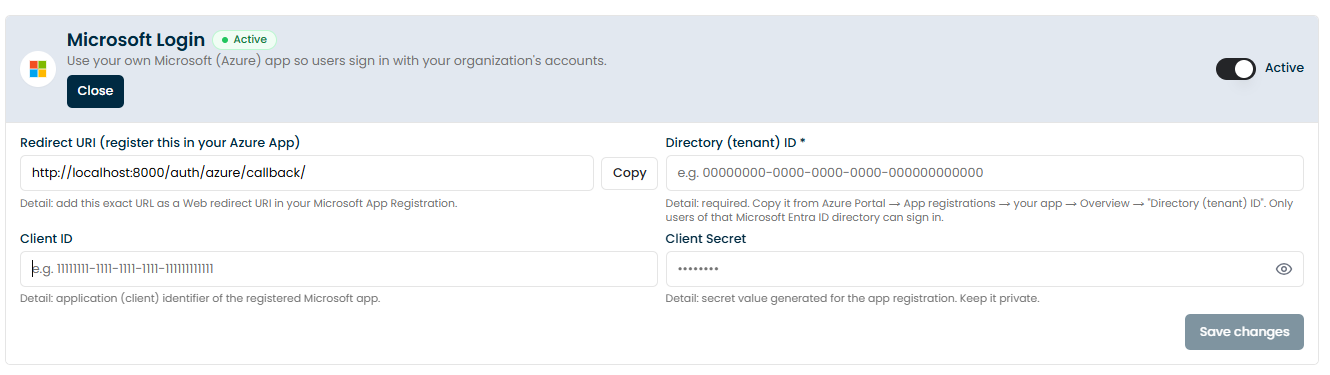
3. Fill in the values
| Field | What it is | Where to get it | Required? |
|---|---|---|---|
| Redirect URI | Address Microsoft sends the user back to. It is read-only: use Copy and register it in Azure. | Generated automatically | — |
| Directory (tenant) ID | Identifies your organization's directory. | Azure → the application → Overview | Yes |
| Client ID | Identifies the registered application. | Azure → the application → Overview (Application (client) ID) | Yes |
| Client Secret | The application's key. It is stored encrypted. | Azure → Certificates & secrets → the secret's Value | Yes |
In Client Secret, paste the Value, not the Secret ID. Azure shows the full Value only once, when the secret is created.
The Save changes button stays disabled until the three required values are filled in. When editing a configuration that is already saved, you can leave the Client Secret empty to keep the current one.
4. Save
Click Save changes. If everything is correct, "Microsoft login settings saved" appears and the card becomes active.

Turn off Microsoft login
Turn off the Active switch. The configuration is kept, but the login button stops working until you turn it on again.
How a user signs in
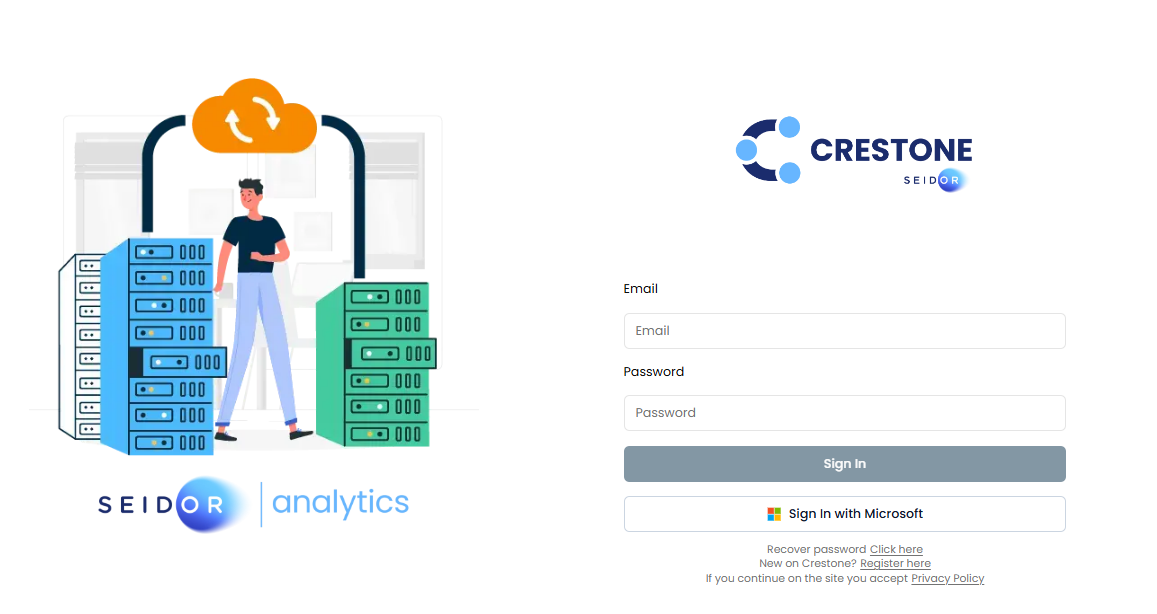
On the login page, the Sign In with Microsoft button takes the user to your organization's Microsoft page. If authentication succeeds, the user returns to Crestone with the session started.
| Situation | What happens |
|---|---|
| The person already exists in Crestone | They sign in with their usual user and role. |
| The person does not exist in Crestone | They are created automatically inside your tenant (no new tenant and no trial license are created). |
| An administrator deleted the person in Crestone | If Azure still authorizes them, they are created again as a new user on sign-in, with the read-only role. |
| The account is marked as disabled in Crestone | They cannot sign in: a message says the account is disabled. |
To see all the ways a user can be created (registration, creation from the tenant and Microsoft) and what happens with the tenant in each case, see How a user is created.
Who signs in for the first time
A person who signs in with Microsoft for the first time is created with:
- The Microsoft SSO user role, which is read-only: they can view, but not create, edit or delete. It is a single shared role for everyone who signs in through Microsoft in the tenant: it is created the first time and reused afterwards.
- Access to all the workspaces of the tenant, so they can see what corresponds to their company.
An administrator can later give them a different role and adjust their workspaces from Users, Roles and Workspaces.
You can also invite a person before they sign in (see Users). That way you choose their role and workspace from the start; when they sign in with Microsoft they get that role.
Who can sign in?
Crestone does not filter by email domain or by group: access is controlled in Azure. Whoever your Azure application authorizes can sign in.
- By default, the application is registered for a single directory, so any account in your organization can authenticate, regardless of its email domain (including the directory's external guests).
- To limit it to specific people or groups, turn on Assignment required in Azure and assign the people who can sign in. People who are not assigned will not be able to sign in to Crestone (see the Azure guide).
When it works and when it does not
| Situation | Does it work? | What you see |
|---|---|---|
| Configuration loaded and active, Redirect URI registered in Azure, account from your organization | Yes | The user signs in. |
| No configuration, or the switch is off | No | Notice "Microsoft login is not configured…". No user is created. |
| The Redirect URI is not registered in Azure (or does not match exactly) | No | Microsoft error page (for example AADSTS900971 or AADSTS50011) before returning to Crestone. |
| The account does not exist in your organization's directory (neither as a member nor as a guest) | No | Microsoft page: "User account … does not exist in tenant … and cannot access the application" (AADSTS50020). You must add it as an external user in Entra ID or sign in with another account. |
| The account is not assigned to the application (with Assignment required) | No | Microsoft rejects the sign-in (AADSTS50105). |
| The account has a different email domain, but exists in your directory (for example, as a guest) | Yes | It signs in normally: what matters is that the account is in the directory, not its domain. |
| The Client Secret is wrong or has expired | No | "Could not complete the Microsoft sign-in. Check the Azure App credentials in Settings." |
| The account is marked as disabled in Crestone | No | "Your Crestone account is disabled." |
| An administrator deleted the user in Crestone and Azure still authorizes them | Signs in | They are created again with the read-only role (see Limitations). |
| The email already belongs to another tenant of the installation | Signs in | They sign in to their tenant, not to the one that configured SSO. An email can only be in one tenant. |
Login messages and what to do
| Message | Likely cause | What to do |
|---|---|---|
| Microsoft login is not configured for this Crestone installation… | Microsoft Login is not configured or not active. | A superadmin must complete it in Settings → Microsoft Login. |
| Your Crestone account is disabled… | The account is marked as disabled. | Ask an administrator to reactivate it. |
| Microsoft rejected the sign-in… | Azure did not allow the sign-in (account not assigned, outside the directory). | Check with the Azure administrator. |
| Could not complete the Microsoft sign-in. Check the Azure App credentials in Settings. | Invalid or expired Client Secret, or wrong Client ID / Directory ID. | Check the saved values; renew the secret if it expired. |
| The Microsoft sign-in session expired… | Too much time passed between opening Microsoft and returning. | Try again. |
| Your account could not be created in Crestone… | The automatic user creation failed. | Contact support. |
Limitations
- One configuration per installation. Crestone uses the first tenant that has Microsoft Login active. It does not choose the tenant based on the email of the person signing in, so it is designed for one installation per company.
- The first user cannot be created through Microsoft. Without a tenant there is nowhere to store the configuration; the first person registers the regular way.
- The initial role is read-only. A person who signs in with Microsoft for the first time cannot manage anything until an administrator assigns them a different role.
- The Client Secret expires. Azure allows secrets with a limited lifetime; you must create a new one and update it in Settings before the expiration date, or the login will stop working.
- Deleting a user does not remove their Microsoft access. If Azure still authorizes them, they are created again with the read-only role on sign-in. To prevent this, remove their access in Azure (see Restrict who can sign in).
- Existing users do not change. People created earlier through another method keep their tenant and their role.