Amazon Redshift
Amazon Redshift
Crestone allows you to create a connection with Amazon Redshift to load and synchronize your SAP data.
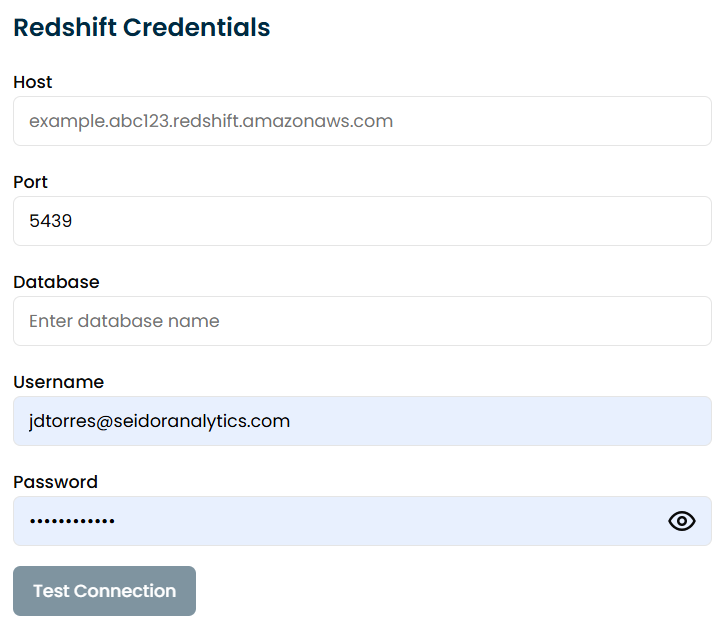
To configure the connection, you need to provide the following parameters:
- Host: The endpoint of your Redshift cluster.
- Port: The port used for the connection (default:
5439). - Database: The name of the database in your Redshift cluster.
- Username: The Redshift user with access to the database.
- Password: The password for the Redshift user.
Steps to Create a Redshift Connection
-
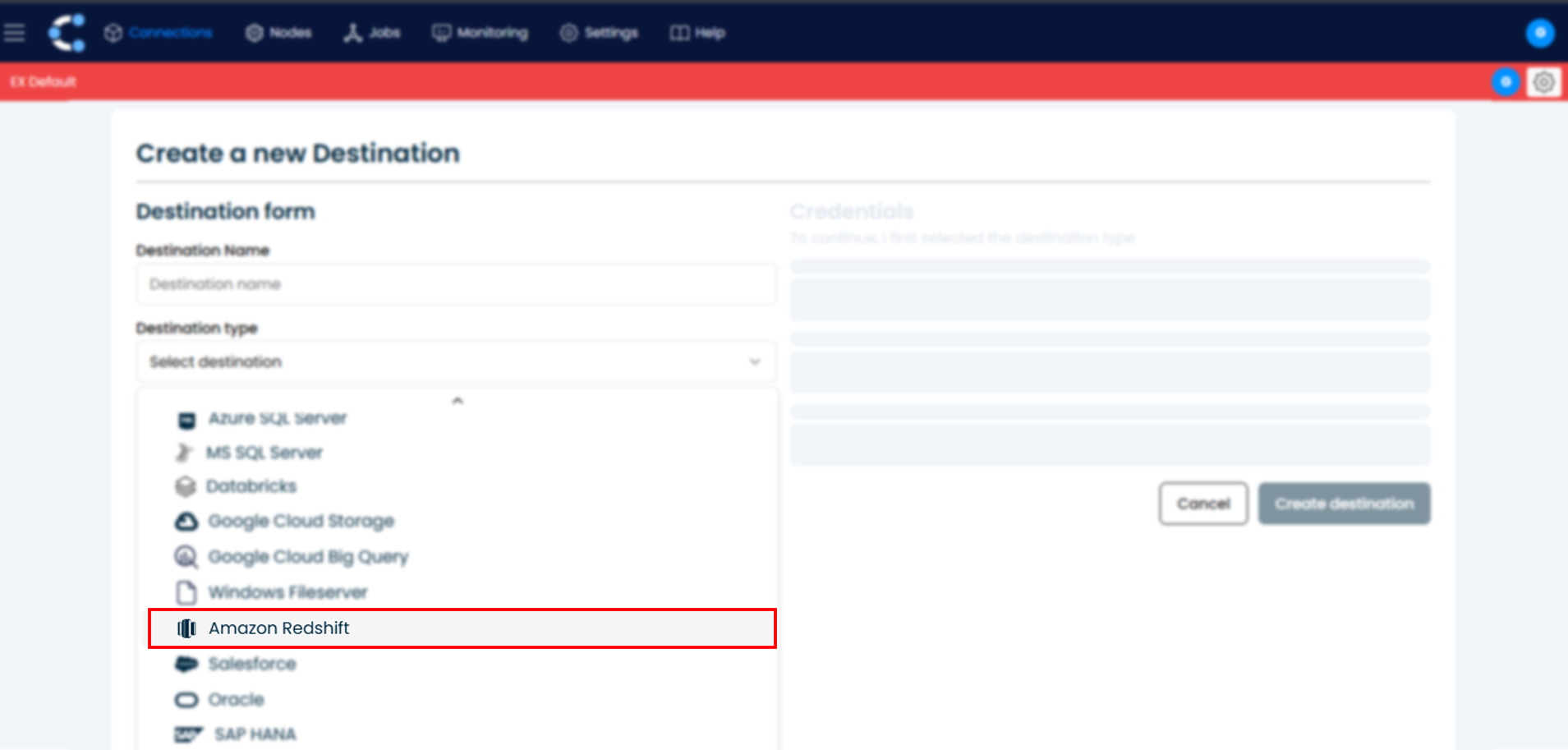
Go to Connections and click New Connection.
-
Select Amazon Redshift as the source type.
-
Fill in the required fields:
- Host
- Port
- Database
- Username
- Password
-
Click Test Connection to validate the credentials.
-
Once validated, click Create Connection.
Configure Amazon S3
Amazon S3 is required as an intermediate storage for certain Redshift operations (such as staging data).
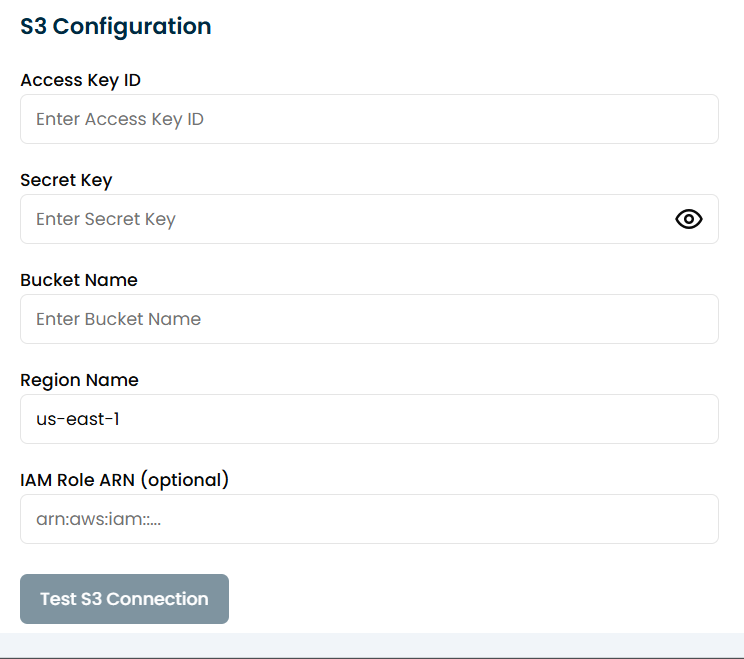
To configure S3 in Crestone, you need to provide the following parameters:
- Access Key ID: AWS access key for the IAM user.
- Secret Key: AWS secret key for the IAM user.
- Bucket Name: The name of your S3 bucket.
- Region Name: The AWS region where the bucket is located.
- IAM Role ARN (optional): The ARN of an IAM role with access to the S3 bucket.
Steps to Configure S3
-
Go to Destinations and click New Destination.
-
Select Amazon S3.
-
Fill in the required fields:
- Access Key ID
- Secret Key
- Bucket Name
- Region Name
- IAM Role ARN (optional)
-
Click Test s3 Connection to confirm access to the bucket.
-
Once validated, click Create Destination.