Azure Storage
Azure Storage
How to create a destination with Azure
1. Select the destination type:
- Select the "Azure" option for the destination type.
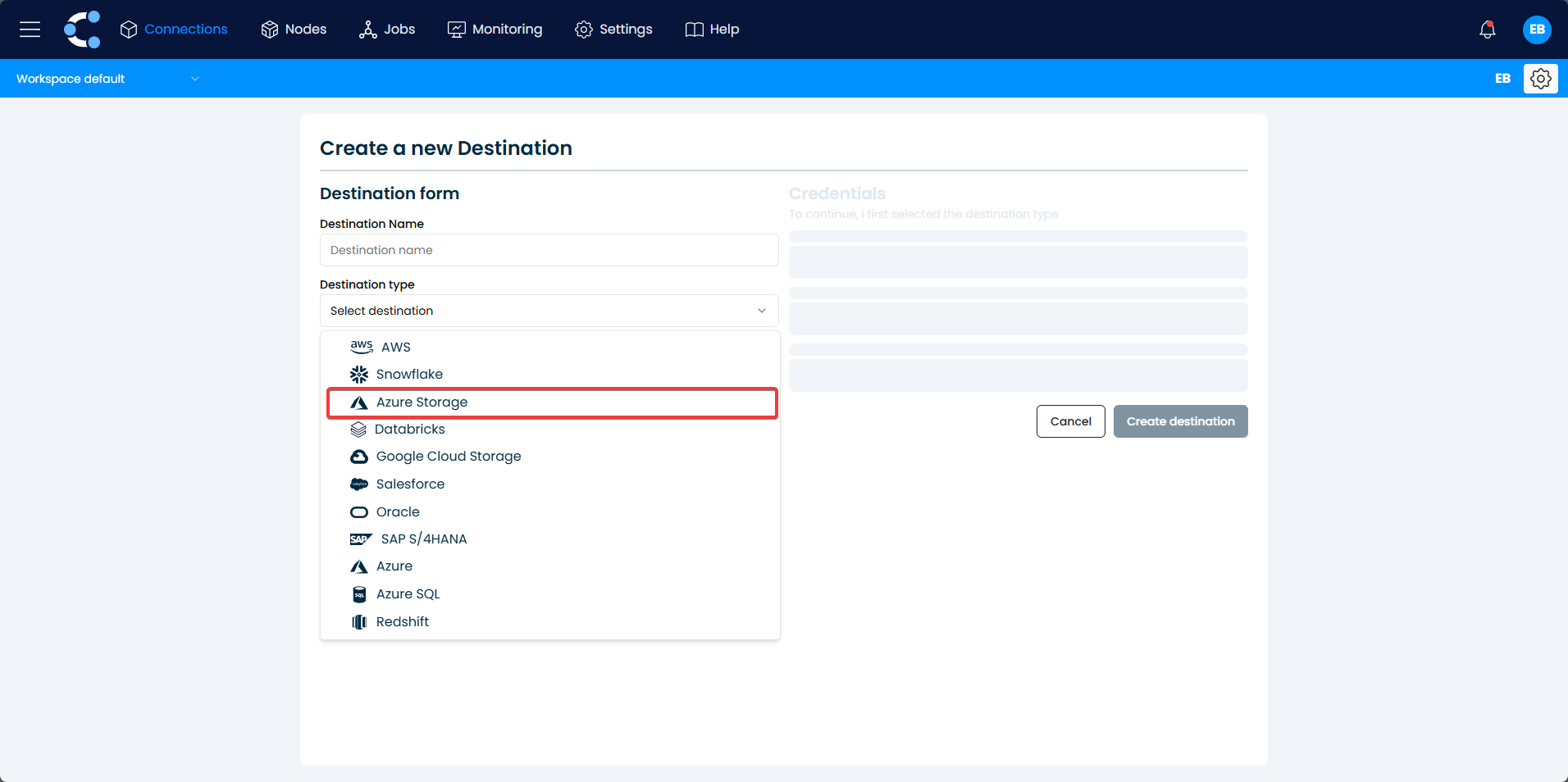
2. Enter Azure credentials:
You will be prompted to enter the credentials needed to connect to your Azure account.
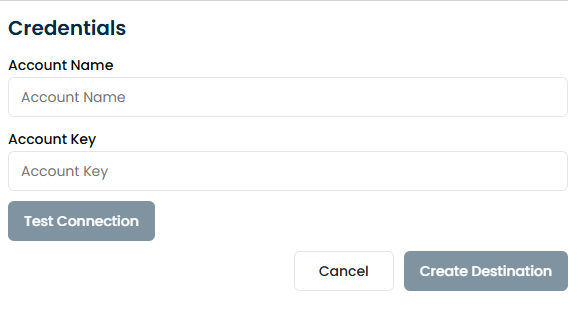
To connect to an Azure Storage Account, follow these steps to gather the necessary details:
Find the Account Name
- Log in to the Azure Portal.
- Navigate to Storage accounts in the left-hand menu.
- Select the storage account you want to connect to.
- Under the Overview section, locate the Storage account name field.
- Copy the account name, which is typically a unique identifier for your storage account.
Retrieve the Account Key
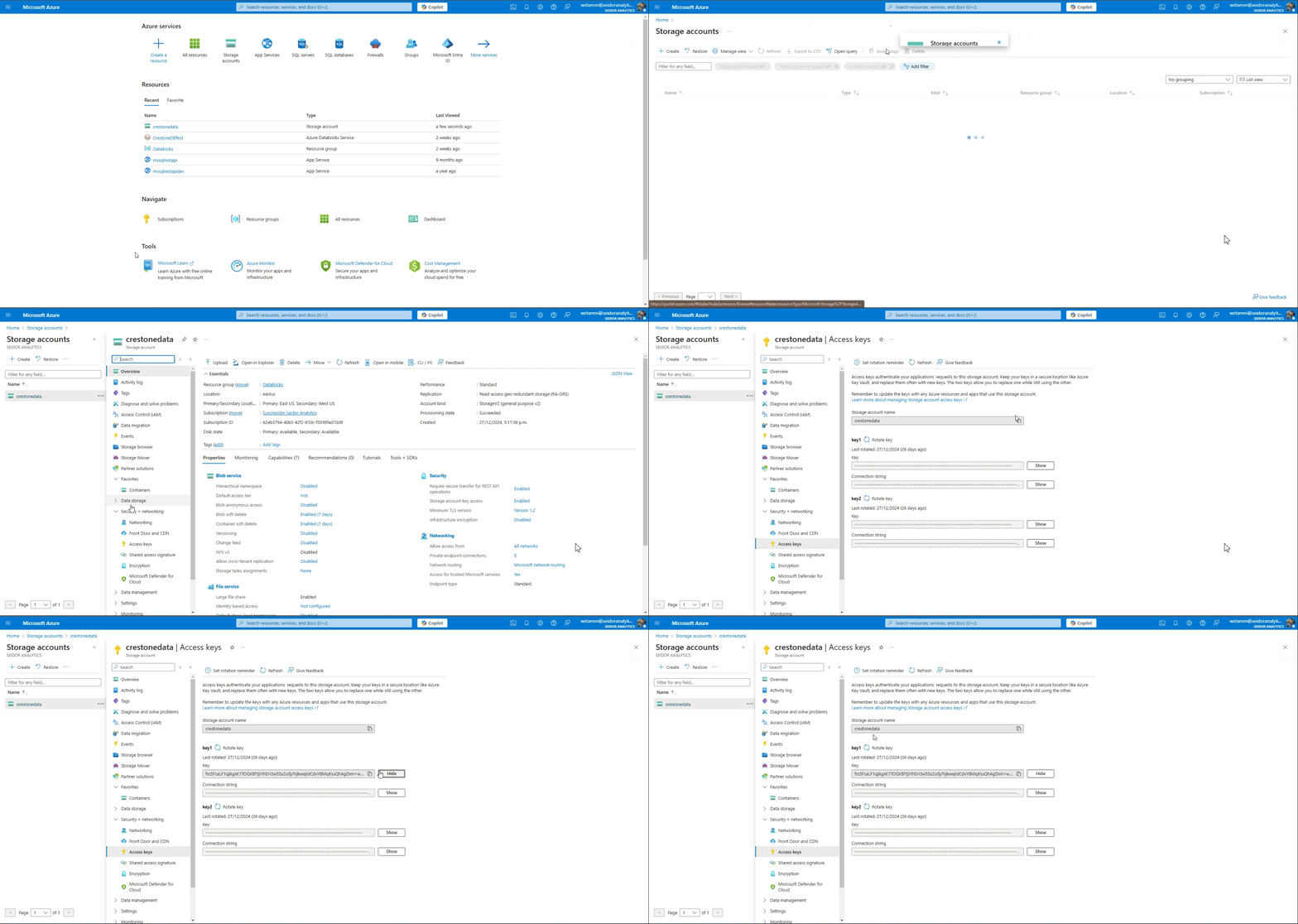
- In the selected storage account, navigate to Access keys under the Settings section in the left-hand menu.
- You will see two key pairs: Key1 and Key2.
- Copy the key you want to use (either Key1 or Key2). Both keys provide the same level of access, so you can use either.
- Important: Store this key securely, as it grants access to your storage account.
3. Test the connection:
Click the "Test Connection" button to verify that the connection to Azure has been established correctly. If the test is successful, the system will enable additional configuration options.
4. Create the connection:
Finally, click the "Create Destination" button to establish the connection to Azure.