PostgreSQL Destination
PostgreSQL Destination
Prerequisites
Before configuring the PostgreSQL connection in Crestone, make sure you have the following:
Main Requirement: An active and accessible PostgreSQL database, version 9.x or higher, hosted locally, remotely, or through a cloud provider (such as Supabase, Amazon RDS, Azure Database for PostgreSQL, or Google Cloud SQL). PostgreSQL 12 or higher is recommended for production environments.
Required Information:
| Field | Description |
|---|---|
| Server / Host | IP address or hostname of the PostgreSQL server (e.g. 192.168.1.100 or db.example.com) |
| Port | TCP port where PostgreSQL is listening. Default is 5432. |
| Database | Exact name of the database to connect to (e.g. postgres, my_database) |
| Username | User with sufficient privileges to read/write data (e.g. postgres) |
| Password | Password for the specified user |
Tip: If you are connecting to a Supabase instance, use the following values:
- Server:
db.<project-ref>.supabase.co- Port:
5432(direct connection, recommended for bulk loads)- Database:
postgres- Username:
postgres- Password: the password you set when creating the project
Pre-Verification Step
Before configuring the connection in Crestone, we recommend verifying your credentials using any PostgreSQL client of your choice (e.g. pgAdmin, DBeaver, psql, TablePlus). This ensures that the credentials are correct and that the server is reachable before proceeding with the setup.
Configuration Steps
Follow these steps to create a new PostgreSQL destination connection in Crestone:
- Navigate to Connections in the top navigation bar.
- Select the Destination tab.
- Click the + button to create a new connection.
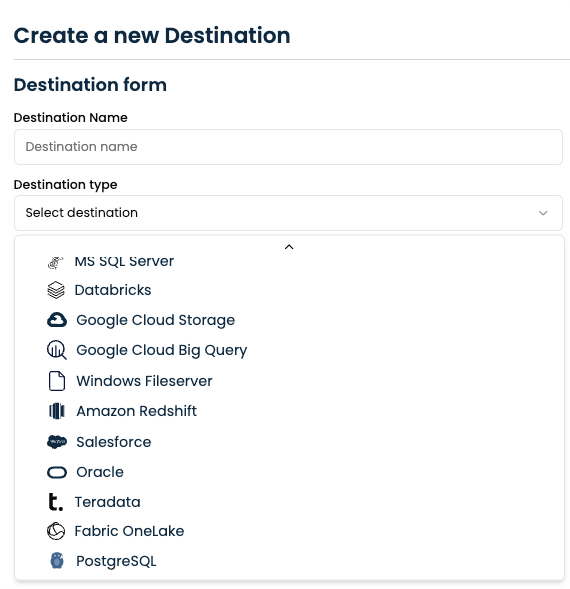
- Fill in the Connection Name field with a descriptive name (e.g.
My PostgreSQL DB). - In the Destination Type dropdown, select PostgreSQL.
-
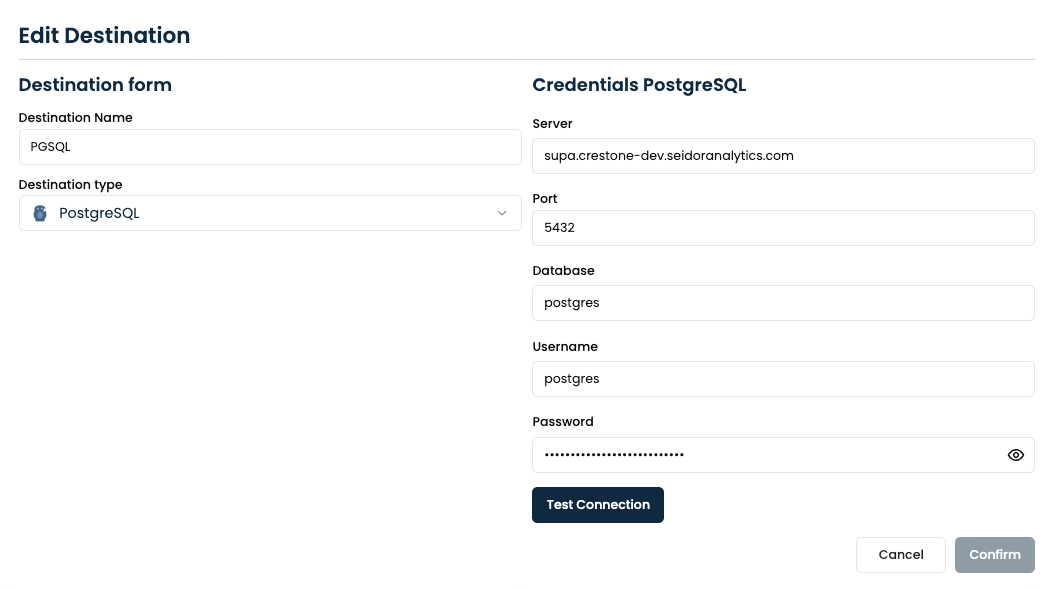
Complete the credentials form with the required fields:
- Server — host or IP address of your PostgreSQL instance
- Port — default
5432 - Database — name of the target database
- Username — database user
- Password — password for the user
-
Click Test Connection to validate that Crestone can reach the database successfully.
-
Once the test passes, click Create Destination to save the connection.
Editing an Existing Connection
To update the credentials of an existing PostgreSQL connection:
- Navigate to Connections and find your PostgreSQL destination.
- Click Edit.
- Modify the desired fields in the credentials form.
- Click Test Connection to verify the new credentials.
- Click Confirm to save the changes.
Using PostgreSQL as a Destination in an Extraction Node
Once the connection is created, you can use it as the destination of an Extraction Node:
- Open or create an Extraction Node and go to the Destination tab.
- In Select Destinations, choose your PostgreSQL connection.
- In Select Database, choose the target database from the list.
- In Select Schema, choose an existing schema or select Create new schema to create one on the fly.
- In Select Table, choose an existing table or select Create new table to have Crestone create it automatically based on the source data structure.
- Optionally enable Prefers to delete existing data and then insert new data if you want the table to be truncated before each load.
- Continue to the Settings tab and save the node.
Note: When you select Create new table, Crestone automatically infers the column types from the source data and creates the table in PostgreSQL before inserting records. The type mapping used is:
Source type PostgreSQL type Int8 / Int16 SMALLINTInt32 INTEGERInt64 BIGINTFloat32 REALFloat64 DOUBLE PRECISIONBoolean BOOLEANString TEXTDate DATEDatetime TIMESTAMP
Common Issues
| Issue | Possible Cause | Solution |
|---|---|---|
| Connection timeout | Firewall blocking port 5432 | Allow inbound connections on port 5432 from the Crestone server IP |
| Authentication failed | Wrong username or password | Verify credentials in your PostgreSQL client first |
| Database not found | Database name is incorrect or does not exist | Check the exact database name (case-sensitive) |
| SSL error | Server requires SSL | Try connecting directly on port 5432 instead of 6543 (PgBouncer) |
| Permission denied | User lacks privileges | Grant the user CREATE, INSERT, SELECT, DELETE on the target schema |
Required Permissions
The database user configured in Crestone needs at minimum the following privileges on the target database:
-- Allow connection
GRANT CONNECT ON DATABASE my_database TO my_user;

-- Allow schema creation (if Crestone needs to create new schemas)
GRANT CREATE ON DATABASE my_database TO my_user;

-- Allow table creation and data operations on a specific schema
GRANT USAGE, CREATE ON SCHEMA my_schema TO my_user;
GRANT INSERT, SELECT, DELETE ON ALL TABLES IN SCHEMA my_schema TO my_user;
Tip: If you use
postgresas the user (Supabase default), it already has superuser privileges and no additional grants are needed.