MS SQL Server
MS SQL Server
Prerequisites for SQL Server Connection
Main Requirement
In order to test and establish a successful connection to SQL Server, it is essential to have an active and accessible SQL Server database. This can be hosted at:
- Local server (your own machine)
- Remote server (internal company network)
- Any database manager that supports SQL Server
Required Connection Data
Before you set up your connection in the app, make sure you have the following information available:
- Server/Host: The IP address or name of the server where the database is hosted
- Port: SQL Server Connection Port (Default: 1433) May vary depending on server configuration
- Database Name: Exact name of the database you want to connect to Example:
mi_empresa_db, inventory, sales2025 - Username Username with permissions to access the database Example:
admin, usuario_app, sa (admin) - Password Password corresponding to the specified user
Pre-Verification
Before setting up the connection in the app, we recommend that you verify that these details are correct by connecting from any SQL client of your choice or database manager that supports this connection.
Once you've confirmed that you can connect with these tools, you'll be able to set up the connection in the app using the same set of credentials.
Step by step
- Go to Create Connection.
- Click on the Destination tab.
- Click the Destination name field.
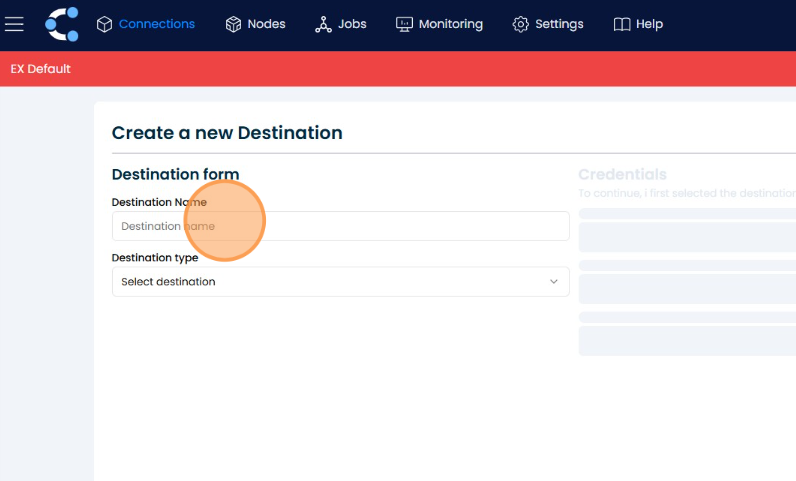
- Select SQL Server as the connection type.
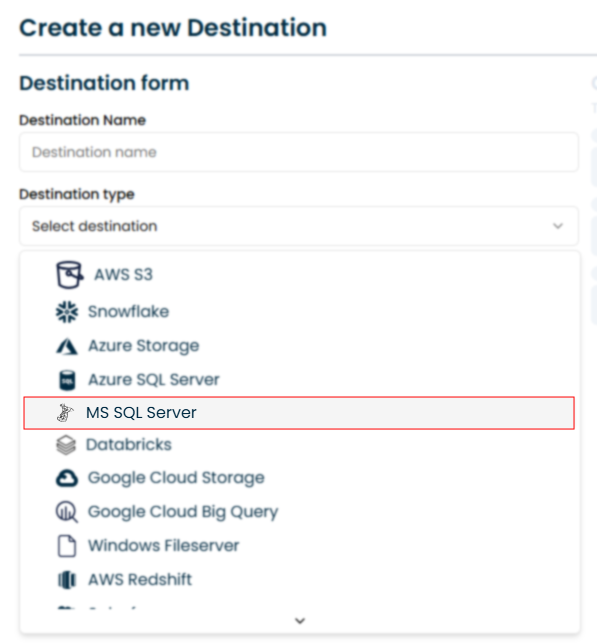
-
Fill in the required fields with the connection data you have prepared:
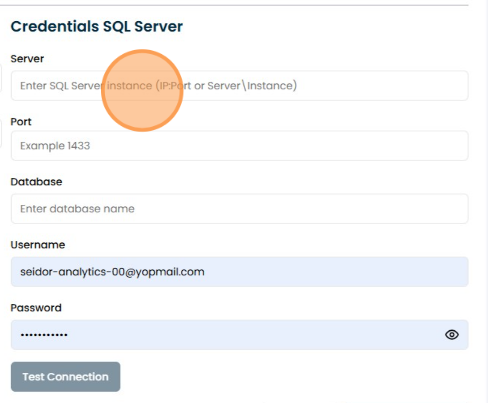
- Connection Name:
SQLServer_Connection - Port:
1433 - Database Name:
your_database_name - Username:
your_username - Password:
your_password
- Connection Name:
-
Click Test Connection to verify that the connection is successful.
-
Once validated, click Create to save the connection.