Databricks
Databricks
How to create a destination with Databricks
1. Select the destination type:
- Select the "Databricks" option for the destination type.
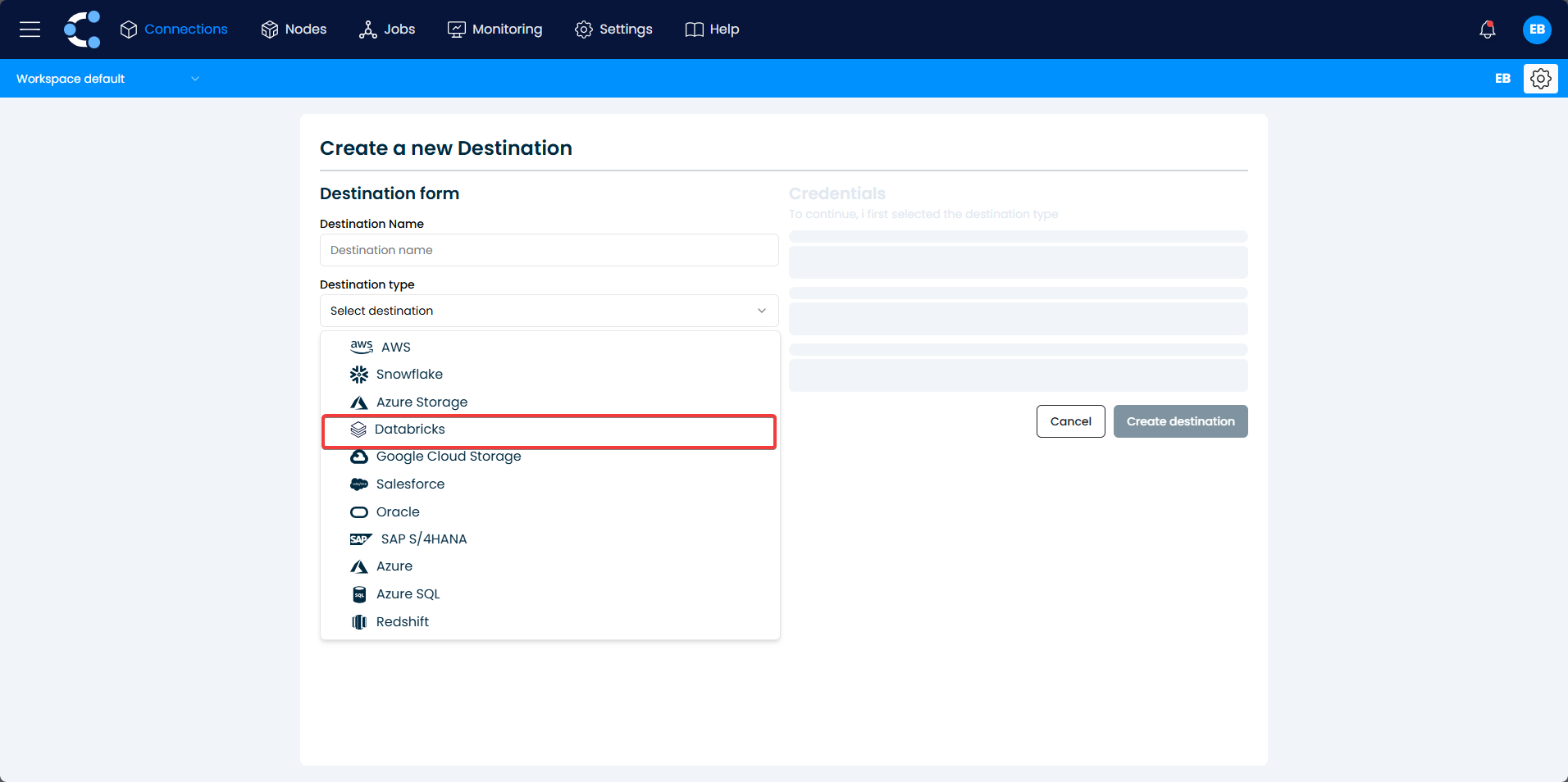
2. enter Databricks credentials:
- You will be prompted to enter the credentials needed to connect to your Databricks account.
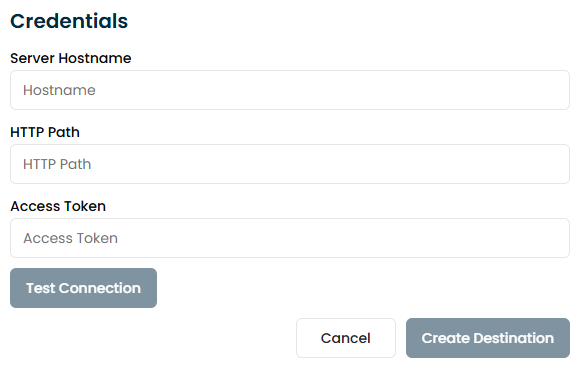
-
Enter the Server Hostname: Enter the hostname of your Databricks workspace. You can find this information in your Databricks workspace under Account Settings or in the URL of your workspace. For example, it might look like:
https://<databricks-instance>.cloud.databricks.com. -
Provide the HTTP Path: Input the HTTP Path associated with your Databricks cluster. To find the HTTP Path:
- Navigate to your Databricks workspace.
- Go to Clusters, select the cluster you want to connect to, and click Advanced Options.
- Locate the HTTP Path field and copy its value.
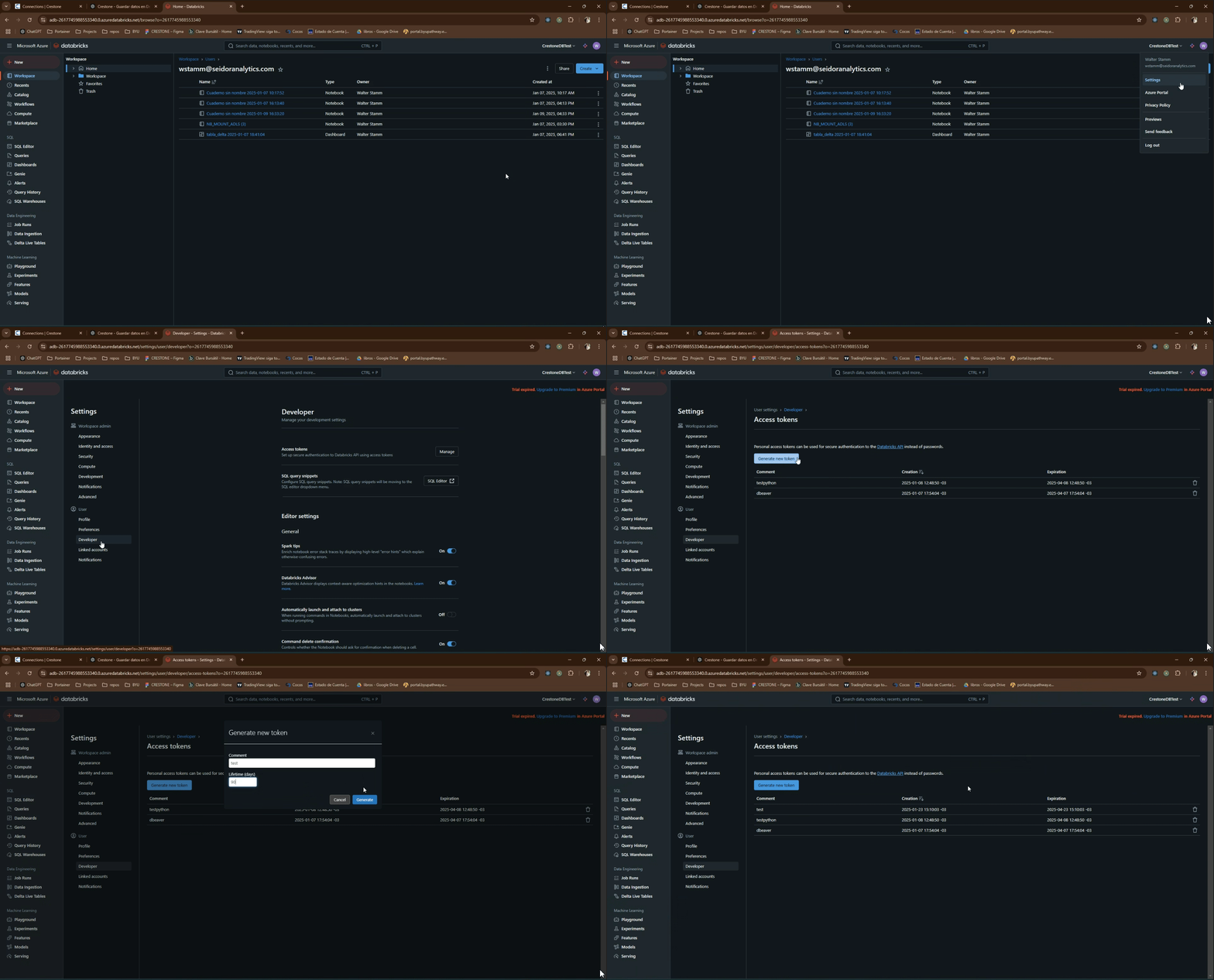
- Enter the Access Token Provide the personal access token for your Databricks account. You can generate one by:
- In your Databricks workspace, click on your user profile icon (top-right corner).
- Select User Settings from the dropdown menu.
- Open the Developer tab
- Open the Access Tokens tab.
- Click Generate New Token, then provide an optional name and expiration date.
- Copy the generated token. Important: Save the token securely, as it won't be displayed again after creation.
Note: Make sure to store your access token securely, as it provides access to your Databricks workspace.
3 Test the connection:
 Click the "Test Connection" button to verify that the connection to Databricks has been established correctly.
If the test is successful, the system will enable additional configuration options.
Click the "Test Connection" button to verify that the connection to Databricks has been established correctly.
If the test is successful, the system will enable additional configuration options.
4 Create the connection:
Finally, click the "Create Destination" button to establish the connection to Databricks.