Teradata
Teradata
How to create a destination with Teradata
This section guides you through configuring Teradata as a data destination in Crestone. You'll learn how to set up the connection parameters, authenticate securely, and define how extracted data should be loaded into your Teradata environment.
1. Naming
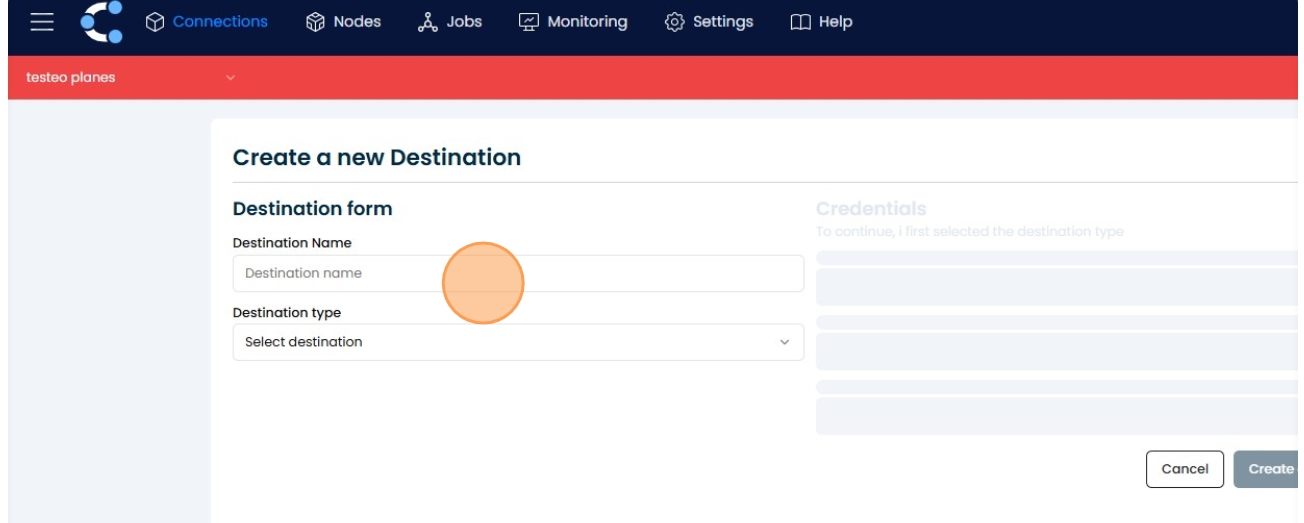
Click the "Destination name" field and type the name by which you want to identify this connection
2. Select the field
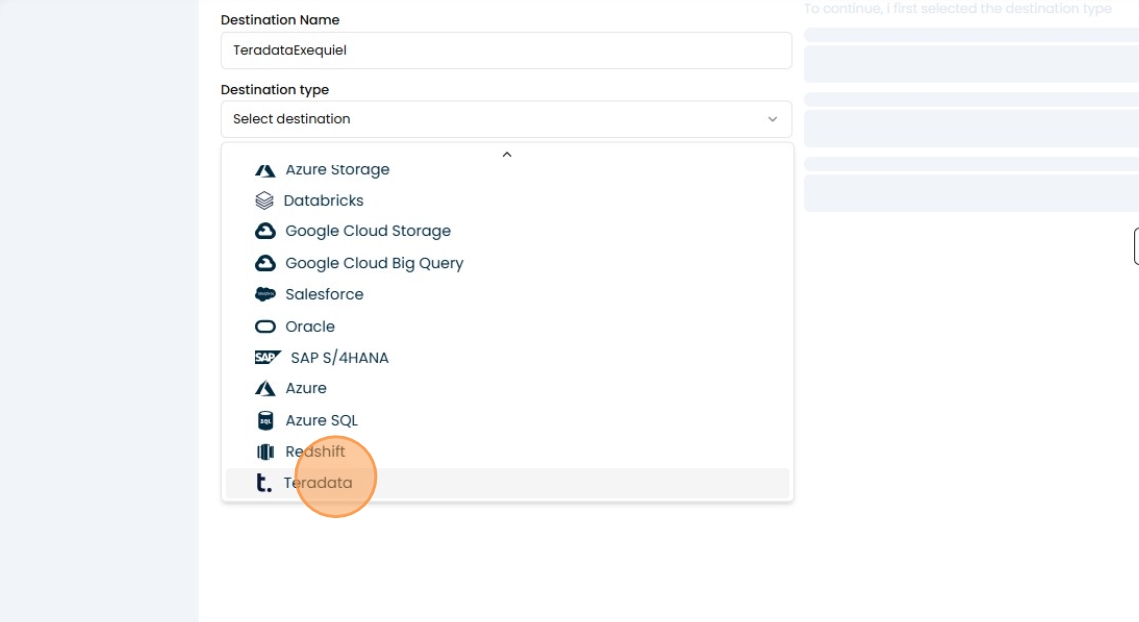
Click the "Destination name" field and select your "Teradata" destination
3. Select Host
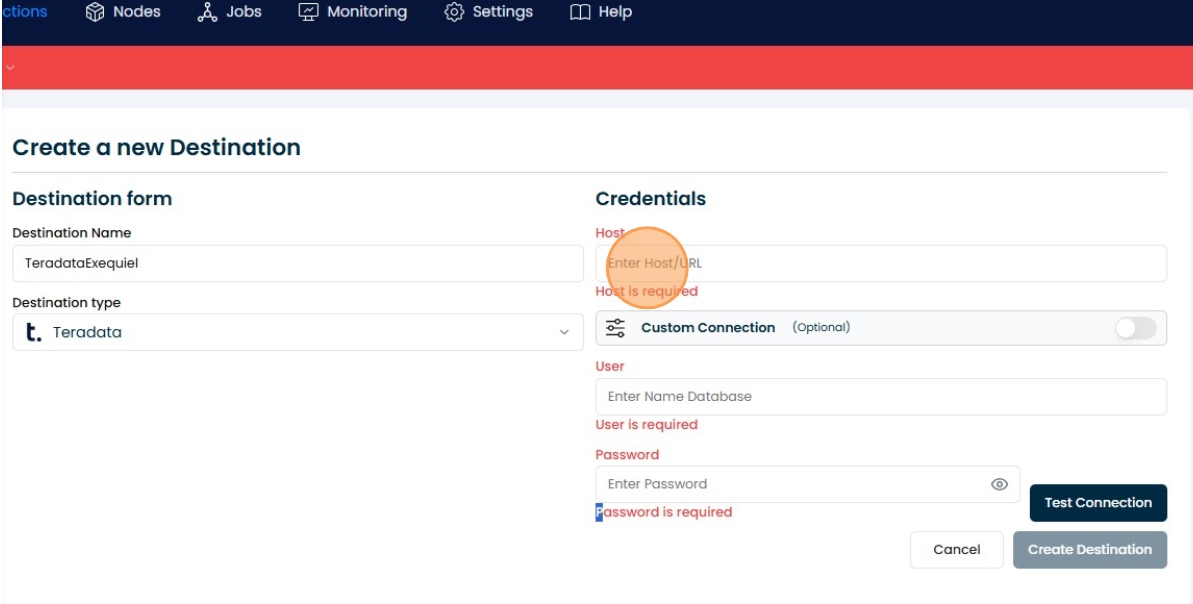
Click the "Host" field.
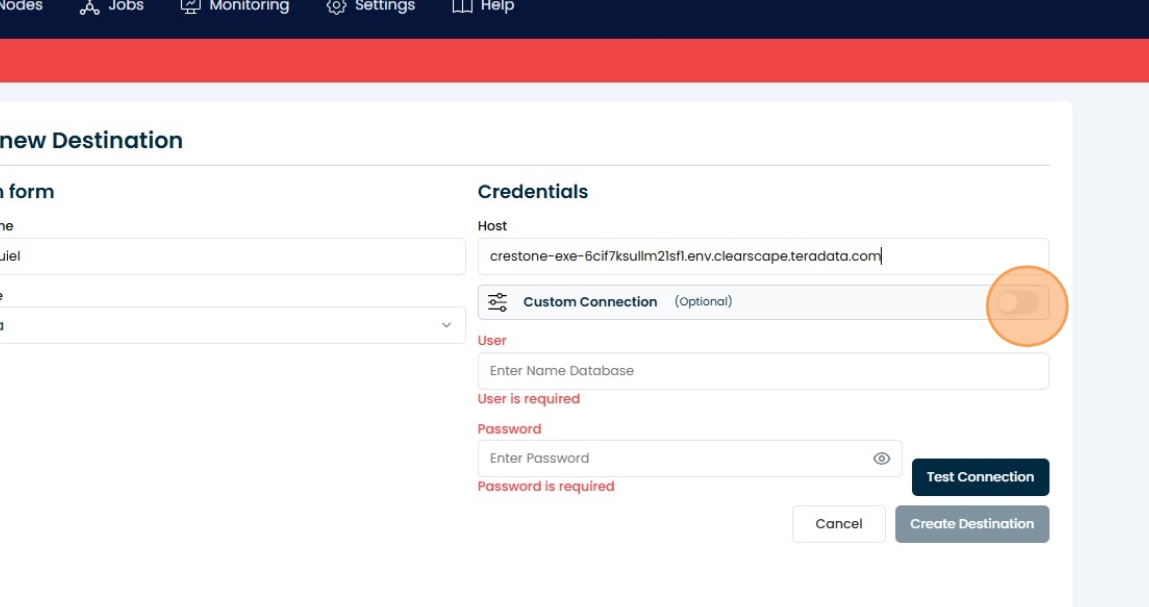
4. Custom Connection
Click this button. This is optional for specific configurations as needed in your database.
Other possible values:
'logmech' can be:
'TD2'(classic),'LDAP'(if you authenticate against Active Directory or an LDAP server),'TDNEGO'(automatic negotiation),'KERBEROS'(if your company uses SSO or kerberos). tmode can be:'TERA'(classic mode, Teradata style transactions),'ANSI'(standard SQL mode). encryptdata can be:'true'or'false'.
5. Complete the fields
-
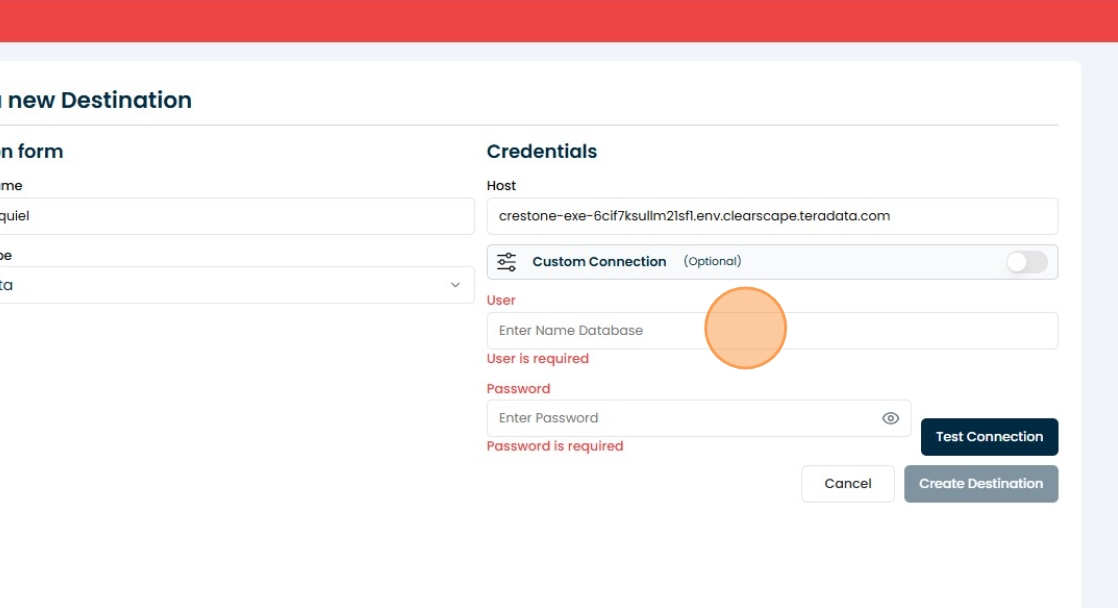
Click the "User" field.
-
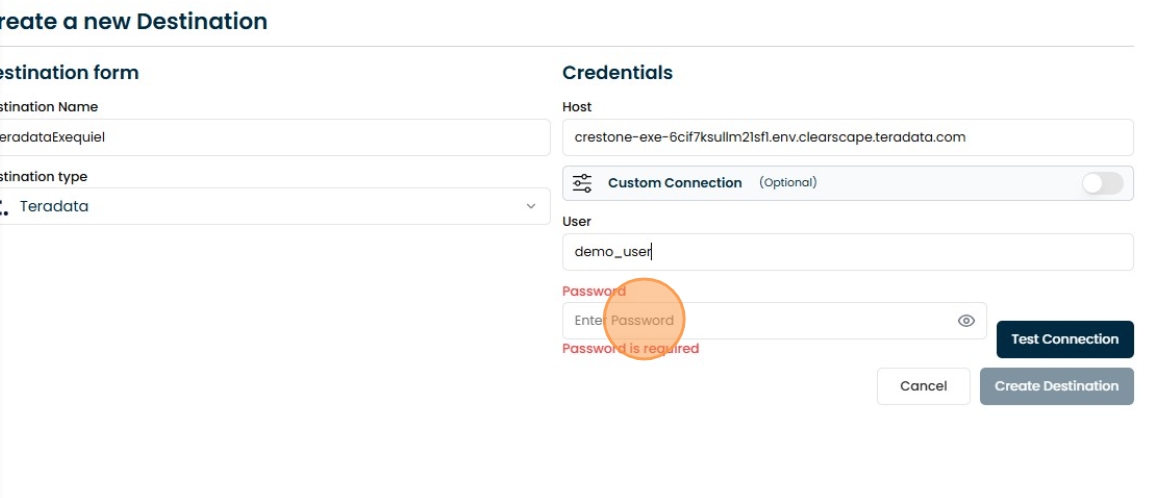
Click the "Enter Password" field.
6. Test connection
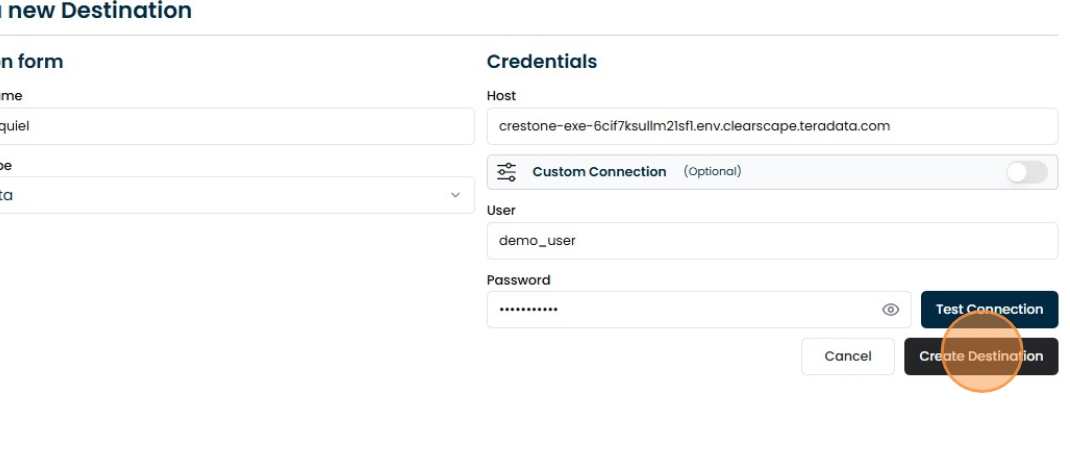
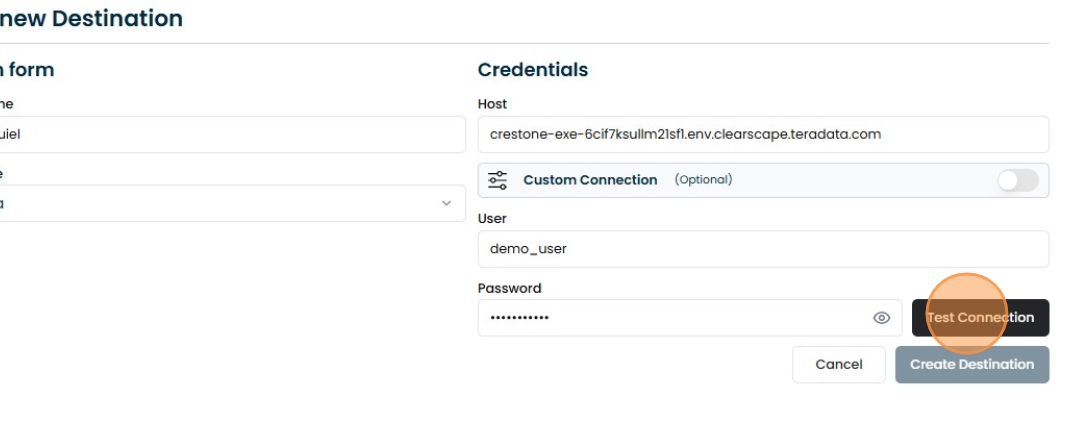
Click on "Test connection", once tested you can proceed to the next step, otherwise check the connection data
7. Create the connection
Click "Create Destination"