Google Cloud Platform
Google Cloud Platform
How to create a destination with Google Cloud Platform
1. Select the destination type:
Select the "Google Cloud Platform" option for the destination type.
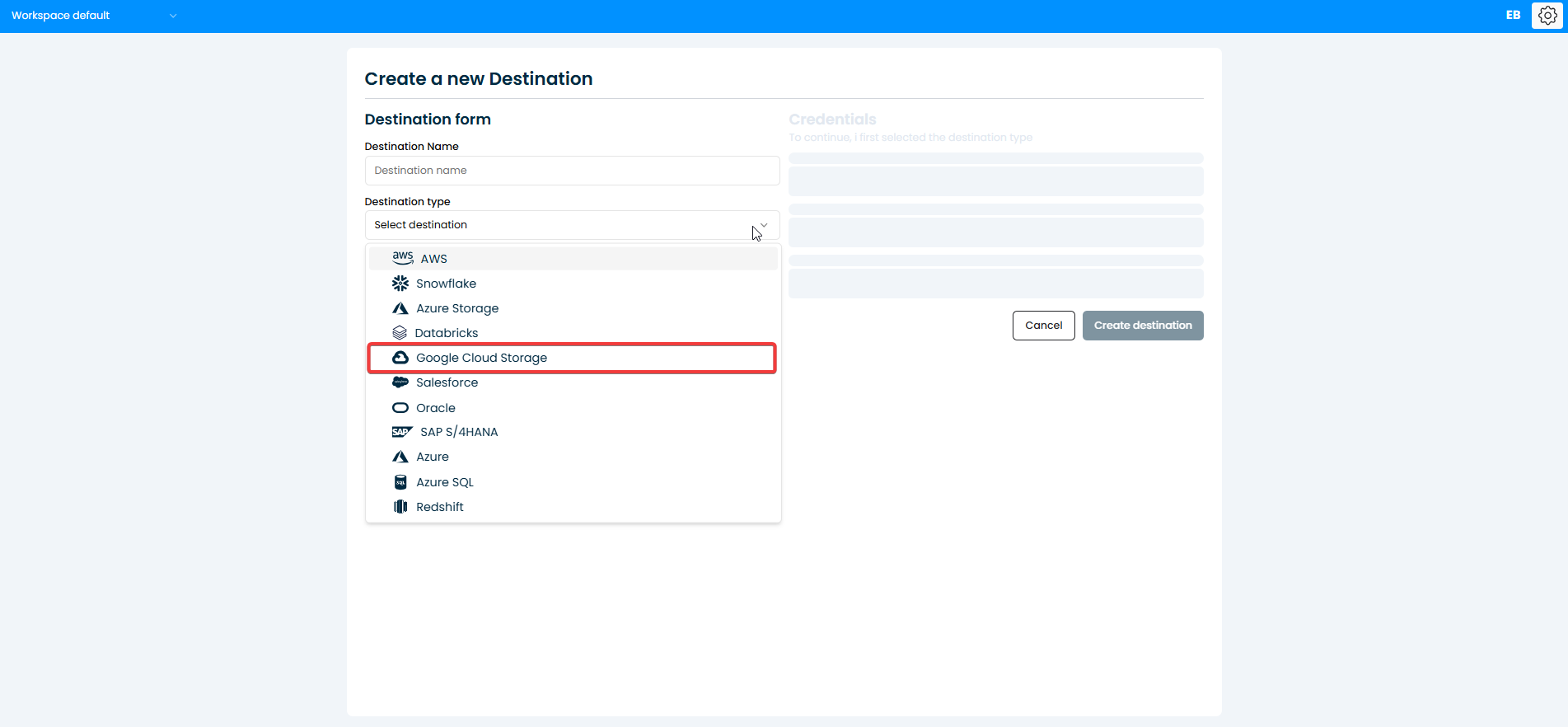
2. Enter GCP credentials:
You will be shown a section where you must upload the file with the credentials to connect to your Google Cloud Platform account.
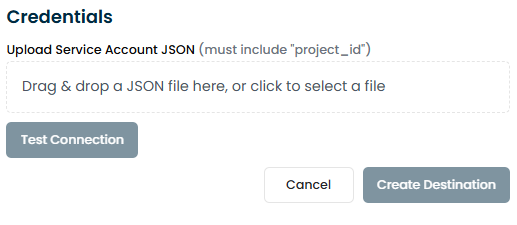
3. Test connection
Click on "Test connection", once tested you can proceed to the next step, otherwise check the connection data
4. Create the connection
Click "Create Destination"
How to get "Service Account JSON"
- Go to the Google Cloud console: https://console.cloud.google.com/
- In the side menu, look for the IAM and Administration option and go to Service Accounts
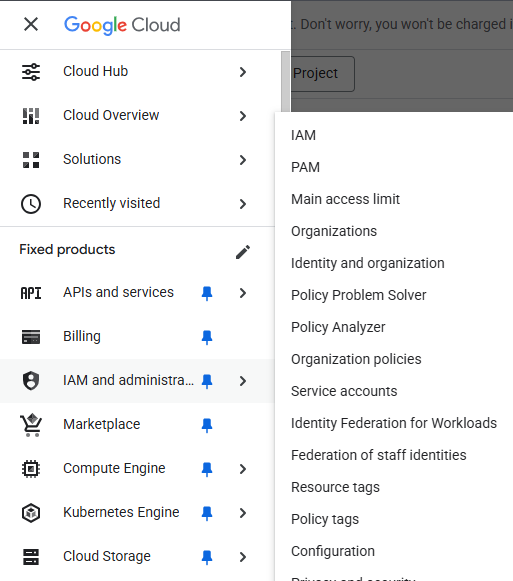
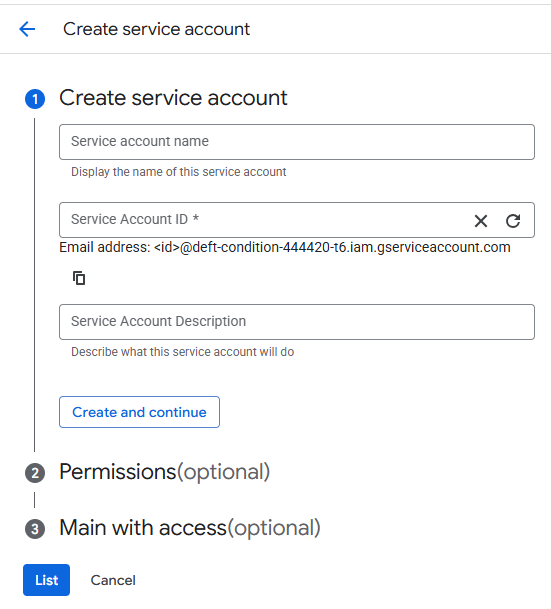
- Look for the option + create service account in the tab and complete everything required in step 1. Name and id of the service, now click create and continue
- Step 2 says optional, but it's important to give it BigQuery admin permissions (you can use the filter to find it)
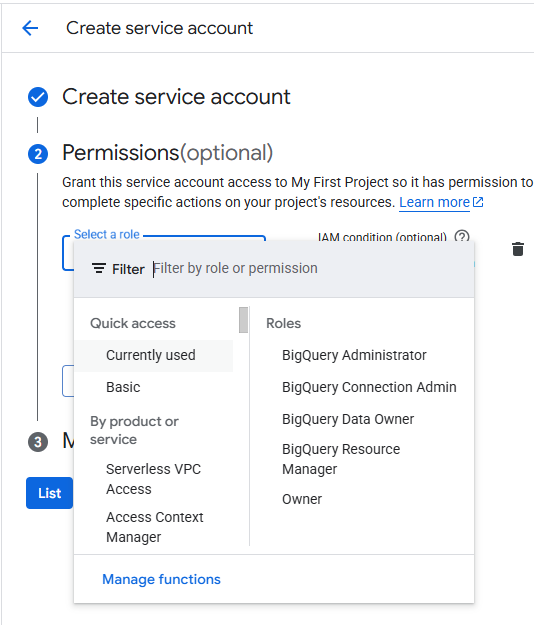
- Continue and voila, step 3 leave it as is.
- View the account created and on the right look for the 3 dots, tap and select the option Manage passwords
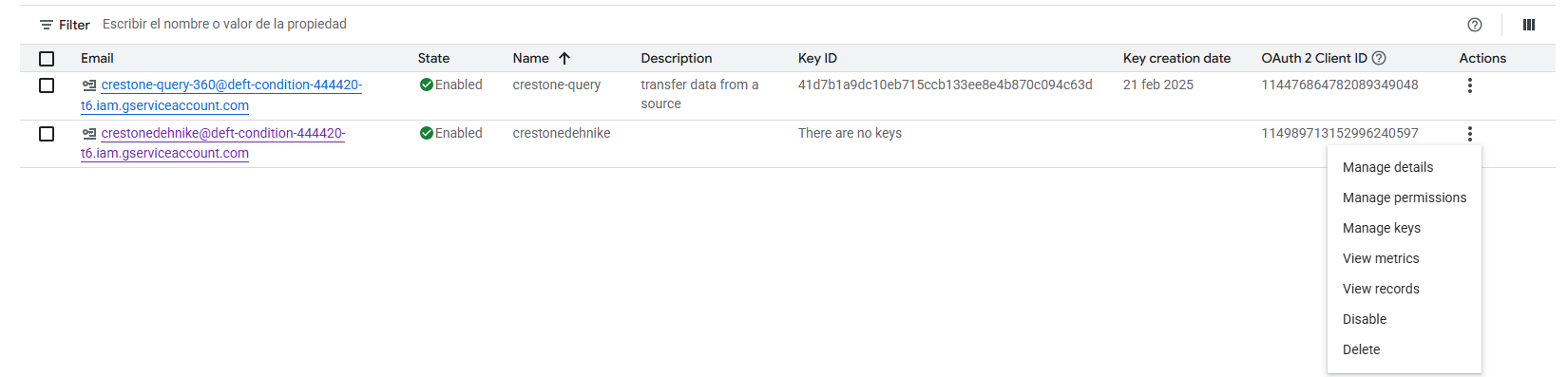
- Within this option in the nabar select keys, look below add key, create new key
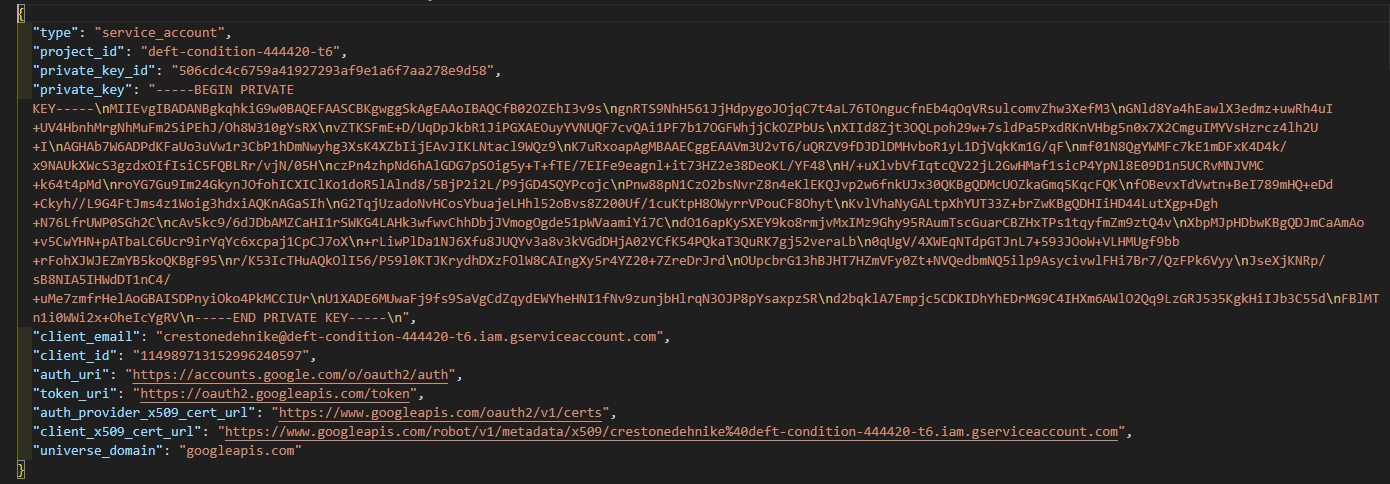
- Select JSON type, create and download a JSON file in downloads that will be used to create the connection.
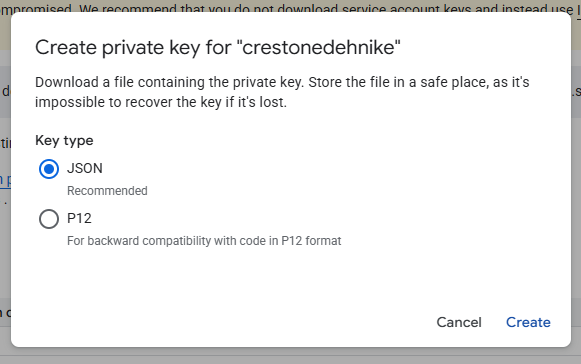
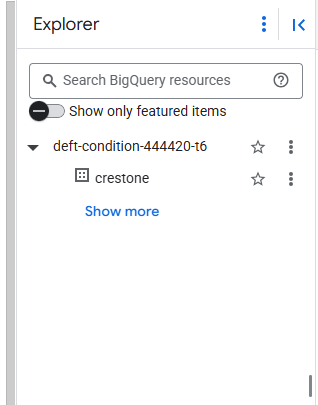
- Copy that content and use it when the connection is created in crestone
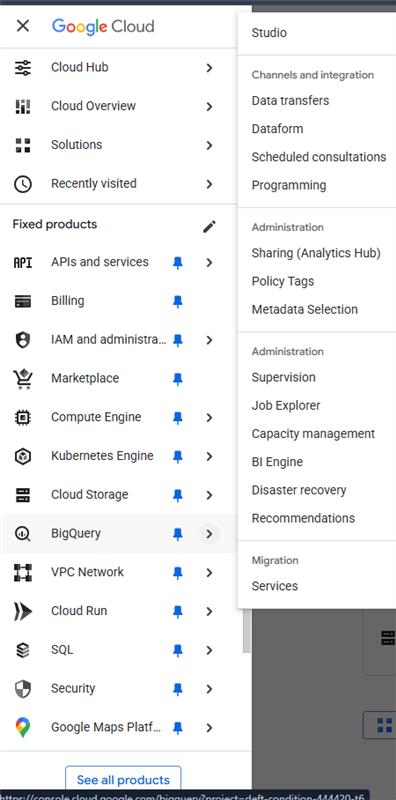
- Return to the cloud console and look for the Big Query option
- Once inside, search for service account and see the options with the 3 dots and select create datasets. Add the identifier ID you like and create it
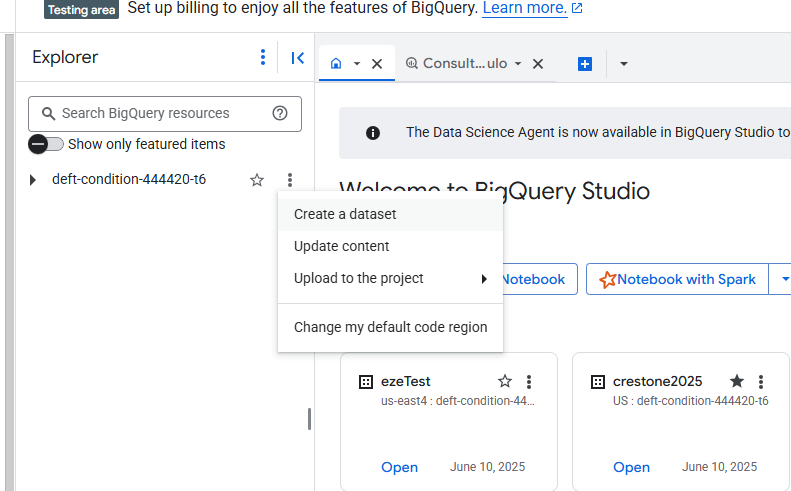
- It will appear at the end with the name of the chosen id